Understanding Signals Center
Last updated: July 29, 2026
Signals Center turns marketing insights into sales action. It equips your team with the strongest buyer signals—and the meaning behind them—all in one place. Your reps know exactly who to contact, what to say, and why.
Key benefits
Zero in on the highest-value targets by surfacing all critical buyer signals in one live feed
Understand interests across the buying group—with signals automatically grouped by company so you see the whole picture
Save time and eliminate tool-hopping with company details and account background from your CRM, all in one view
Never miss a critical moment with automatic signal notifications so you can act fast while signals are still relevant
Access Signals Center
Go to Signals Center in the left-hand navigation in Influ2.
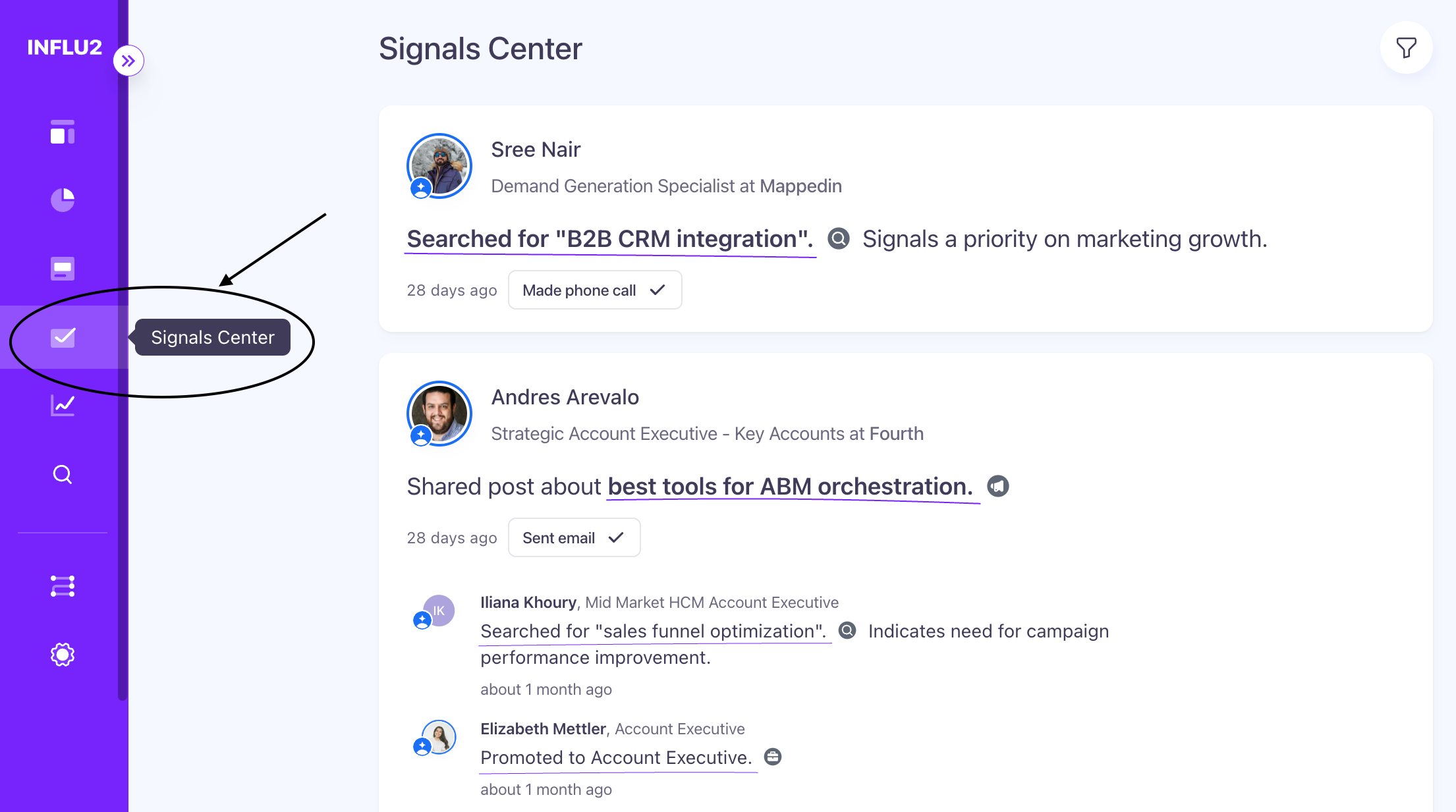
The Signals Center feed
All new contact-level signals appear in one feed, ordered by date. The feed displays signals from the last 30 days, automatically grouped by buying group so you see activity across an entire account.
Signals Center auto-summarizes each signal so it's clear what happened and why your team should take action. The feed is tailored to show each sales user only the signals tied to their accounts.

Types of signals you'll see
Topics of interest — Based on the ads the contact clicked on
Journey stage progression — When a contact moves to the next marketing nurture stage or hits their impression limit (a signal they're warmed up for sales)
Flagged for outreach — Contacts your marketing team flagged for sales follow-up, even if they haven't clicked or seen ads yet
Job changes (with Audienscope) — When a contact was promoted or moved to a new company (sourced from LinkedIn)
Third-party content views (with Audienscope) — When a contact reads relevant content on a third-party site, including which topic, which website, and view count
Search activity (with Audienscope) — When a contact searches for keywords relevant to your company or product (sourced from Google)
LinkedIn posts (with Audienscope) — Posts about relevant topics, automatically filtered to topics like company funding rounds
Don't have access to Audienscope? Learn more here.
Filter signals for quick action
Click the filter icon in the top-right corner to manage your feed. All signals indicate an important reason to reach out—filters help you focus on what matters most.
Sales users see only the "Signal Type" filter.
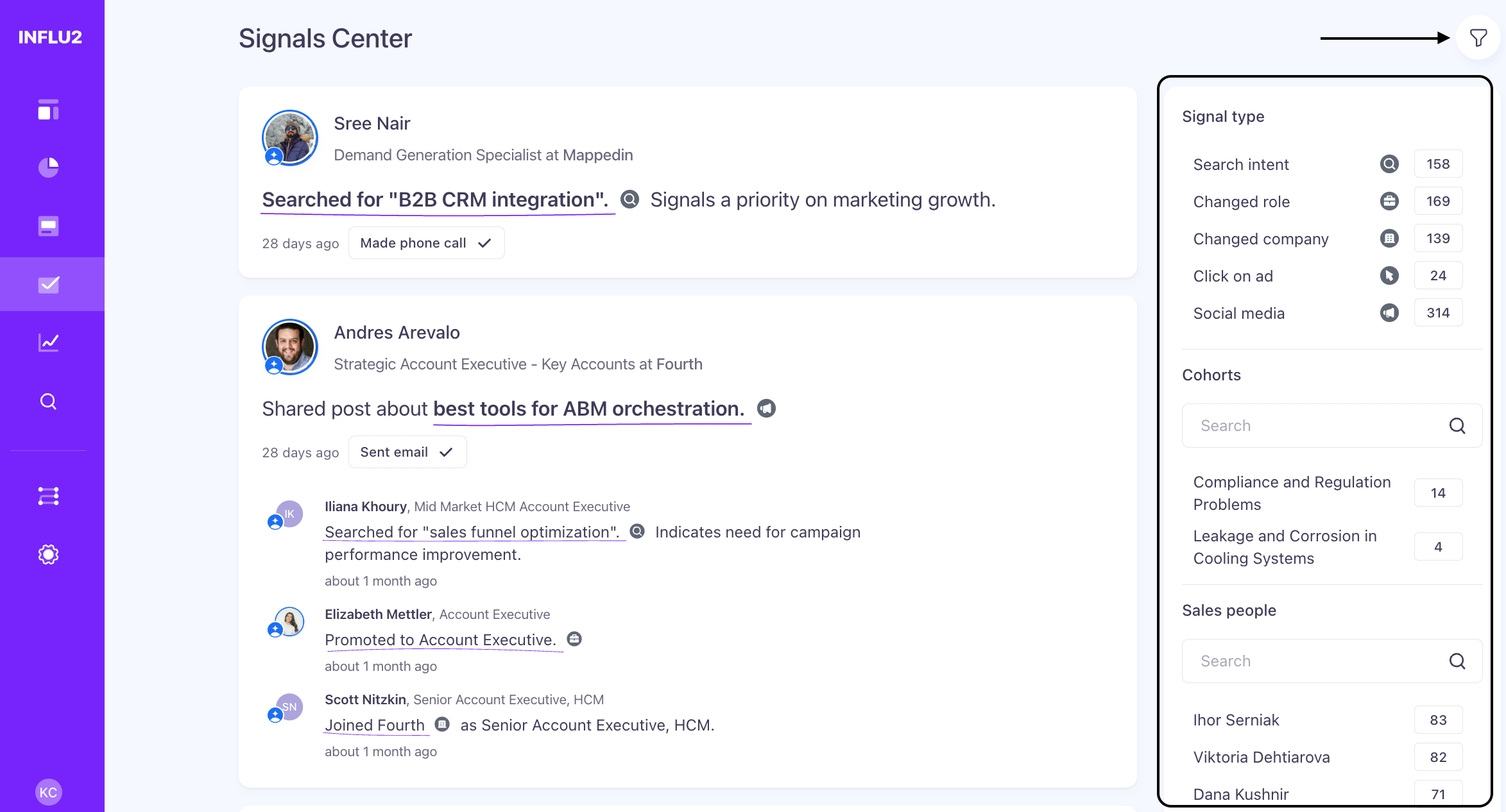
The Signals Center now includes an Audience filter that lets you focus on exactly the signals that matter to you.
Your Audience — shows signals from contacts already in your target audience
Influ2 Suggested — buying group members from accounts you're already targeting who aren't in your audience yet, but are showing signals like search intent, content intent, or recently joined your target accounts. Also includes identified contacts who visited your website, even if their account isn't one you're currently targeting.
Open a signal for full context
Click any signal to open it and see:
Full Signals Center view — All signals tied to this contact, in order. Toggle "Buying group" on to see signals from other members of the account
Signal source — Hover over the grey circle icon next to the signal to see the source (e.g., which ad was clicked, which LinkedIn post was shared)
Summary view — To access the summary view, click into the target report, then view the signals center tab. Here, you'll get instant context to craft relevant outreach without jumping between tools. The summary shows:
Company overview and background
Recent company news
Topics this contact cares about most (based on recent signals)
Topics of interest from other buying group members
Each buying group member's individual engagement


Pro tip: Integrate your CRM, MAP, or sales engagement platform to pull in relevant outreach history for an even easier timeline. Learn how.
Marketing timeline (for marketing users only)
Only marketing users see the full marketing timeline, which shows:
Sales opportunities with contract values
Content engagement
Ads seen
Clicks and impressions

This timeline helps marketing understand the full journey from ad exposure to deal closed-won.
Mark signal status and take action
Track follow-up status — Use the signal status dropdown to mark each signal (e.g., "To be reviewed", "Outreach started", "Responded"). This keeps your team organized and avoids duplicate outreach.

Take quick action — From the top-right corner, you can:
Open the contact's LinkedIn profile
Open the contact record in Salesforce or HubSpot
Jump to Outreach or Salesloft for follow-up
Navigate between signals — Click back into the feed to move to the next signal, or use "Next" in the top-right corner.

Set up notifications so you never miss a signal
Signals Center meets your team where they already work. Configure automatic notifications so your team acts fast while signals are still relevant.
Set up notifications for:
Slack
Email
Microsoft Teams
Salesforce
HubSpot
Learn how to configure notifications.
FAQs
Does my sales team have to log into Influ2 to use signals?
No. Signals Center meets your teams where they work. With automatic notifications and CRM integrations, your team gets the data they need to drive effective outreach—all without leaving their preferred platform.