What is the Target Report?
Last updated: May 29, 2026
The Target Report shows how each contact (target) engaged with your ads and how that engagement contributed to deals. Use it to evaluate marketing impact at the contact level and find opportunities to optimize.
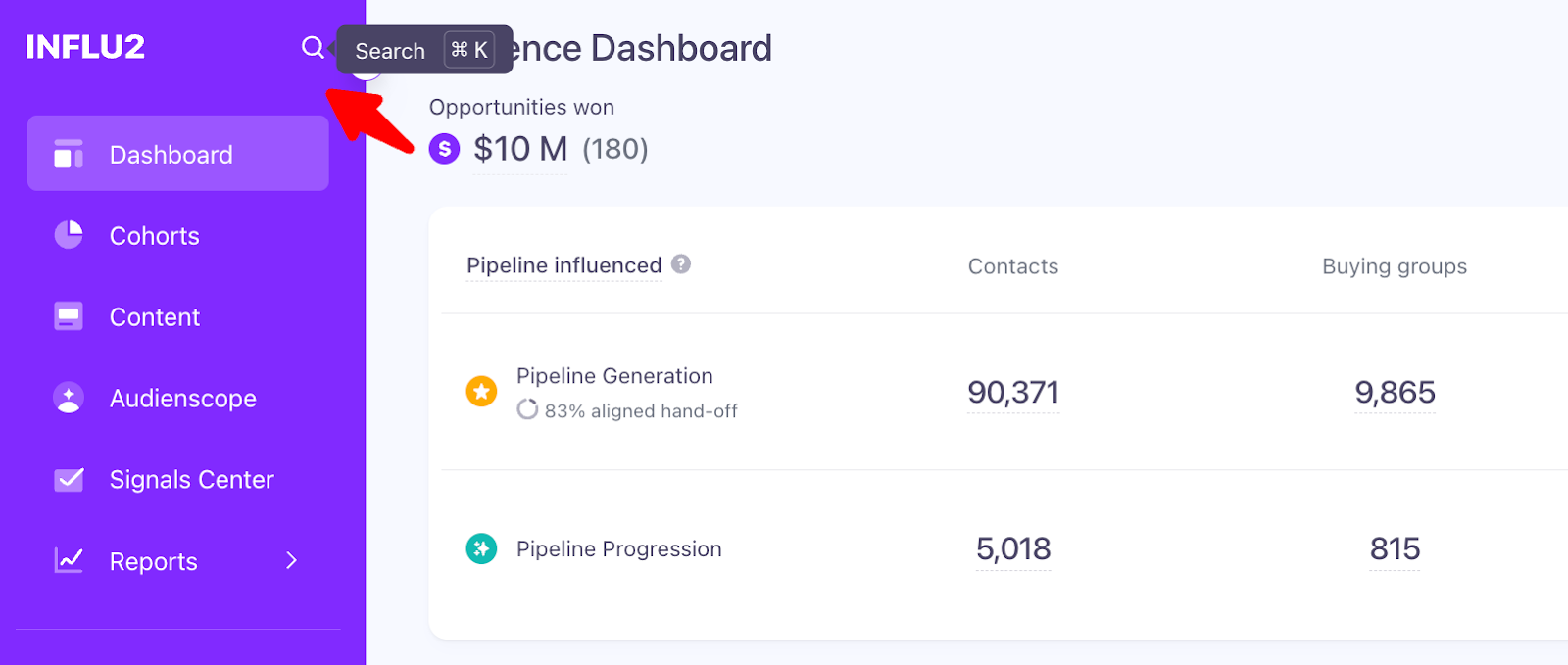
Access the Target Report
You can reach the Target Report from multiple places:
Influence Dashboard — Click on any contact's name
Signals Center — Click any contact who clicked an ad or reached the prioritized stage
Programs - Click on any contact's name from the Audience Table
Search for the contact's name
Target details

The first section of the Target Report shows key information about the contact:
Profile photo and name (if available from CRM)
Buying group — Click to open the Buying Group Report
Title — From your CRM
CRM source — Icons show which CRM the data came from (Salesforce, HubSpot, etc.); click to open their record
LinkedIn profile — Available if synced from your CRM
Contact owner — From your CRM's lead or contact owner field
Impressions and clicks — Total ad engagement during the selected timeframe
Marketing Timeline
The Marketing Timeline shows all impressions and engagements delivered to this contact, along with website visits and marketing activities (like form submissions and email clicks), with several useful features:
Date filtering — Focus on specific time periods
Ad-level insights — See how many times the contact viewed each creative
Active content view — See which ads they're eligible to see in their current journey stage
Current journey stage and cohort — Where they are in the campaign

What you'll see on the timeline
Alongside ad impressions and engagements, the marketing timeline surfaces the following activities in chronological order:
Website visit — "Visited {URL}". Tracked by Influ2's Website Visitor Identification. (Available to Audienscope customers)
Please note: This signal is different from "Visit." See below.
Form submission — "Submitted form {Form name}". Synced from HubSpot.
Email open — "Opened email {Email subject}". Multiple opens of the same email are grouped together. Synced from HubSpot.
Email click — "Clicked link in email {Email subject}". Multiple clicks on the same email are grouped together. Synced from HubSpot.
Webinar registration — "Registered for {Event name}". Synced from HubSpot.
Webinar attendance — "Attended {Event name}". If the contact both registered and attended, only attendance is shown. Synced from HubSpot.
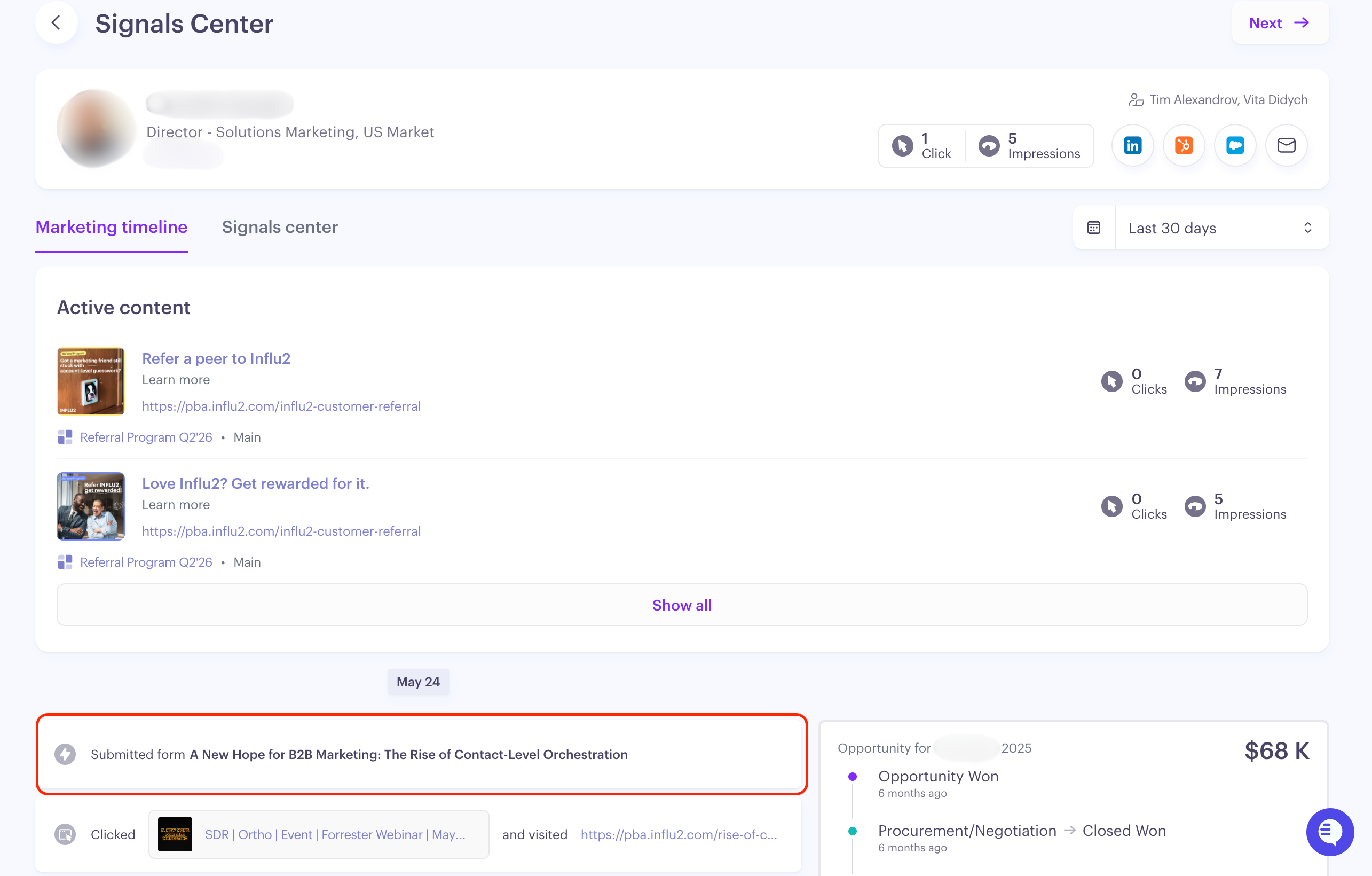
Visit vs. Website Visit
These look similar but mean different things.
Visit is a landing page visit that follows an ad engagement — the contact saw an ad, clicked through, and landed on your site.
Website visit is a visit to your website that is not tied to an ad engagement, captured by Influ2's Website Visitor Identification.
Key timeline events
Moved — The contact progressed from one journey stage or step to another within a cohort.

Meeting booked — Your sales team booked a meeting with the contact's buying group. If recent engagements are yellow, your ads influenced it.

Opportunity created — A new opportunity opened for this contact's buying group. If recent engagements are yellow, your ads influenced its creation.

Opportunity progressed — The deal moved to a higher stage. If recent engagements are green, your ads influenced the progression.

Opportunity won — The deal closed. If recent engagements are purple, your ads contributed to this win.

Associated opportunities
On the right side of the Target Report, you'll see all opportunities associated with this contact's buying group, with consistent color coding:
Yellow — Your ads influenced deal generation
Green — Your ads influenced deal progression
Purple — Your ads influenced deal won


Signals Center tab
The Signals Center tab provides insights designed for sales outreach. It shows whether the contact was prioritized based on:
Prioritized by marketing — The contact reached the Sales Priority stage
Engagement intent — The contact clicked an ad
Website visit - The contact visited your website (available to Audienscope customers)
For each signal, you'll see:
Prioritization date — When they qualified
Reason — Why they were prioritized
Status — Current state (e.g., "To be reviewed")
Triggering content — Which ad or content triggered the signal
Outreach activity
When a contact clicks an ad or becomes prioritized, the status shows "To be reviewed"—signaling your sales team to follow up.

Once your team reaches out, their outreach activity appears in this section.

Additional signals
The Signals Center also displays whether the contact's buying group has:
A meeting booked
A new opportunity created
An opportunity influenced, progressed, or won

Use this report to
Understand contact behavior — See which ads resonated and how they're engaging across other marketing activities
Measure marketing influence — Track how engagement correlates with deals
Personalize sales outreach — Use engagement data and buying group context to craft relevant follow-ups
Optimize campaigns — Identify which contacts and topics drive the most response