How to Connect Influ2 to your LinkedIn Page
Last updated: April 20, 2026
To run ads via Influ2 on LinkedIn, you need to grant Influ2 access to your LinkedIn page through Business Manager. There are two ways to do this:
Accept an access request or
Manually share your page.
Before you start
If you don't already have a LinkedIn page or Business Manager, follow LinkedIn's official guides to set them up first:
Option 1: Accept a request via Business Manager
Make sure you're listed as "Super admin" of your LinkedIn business page.
Go to your LinkedIn business page and click Settings at the bottom of the left-side menu.
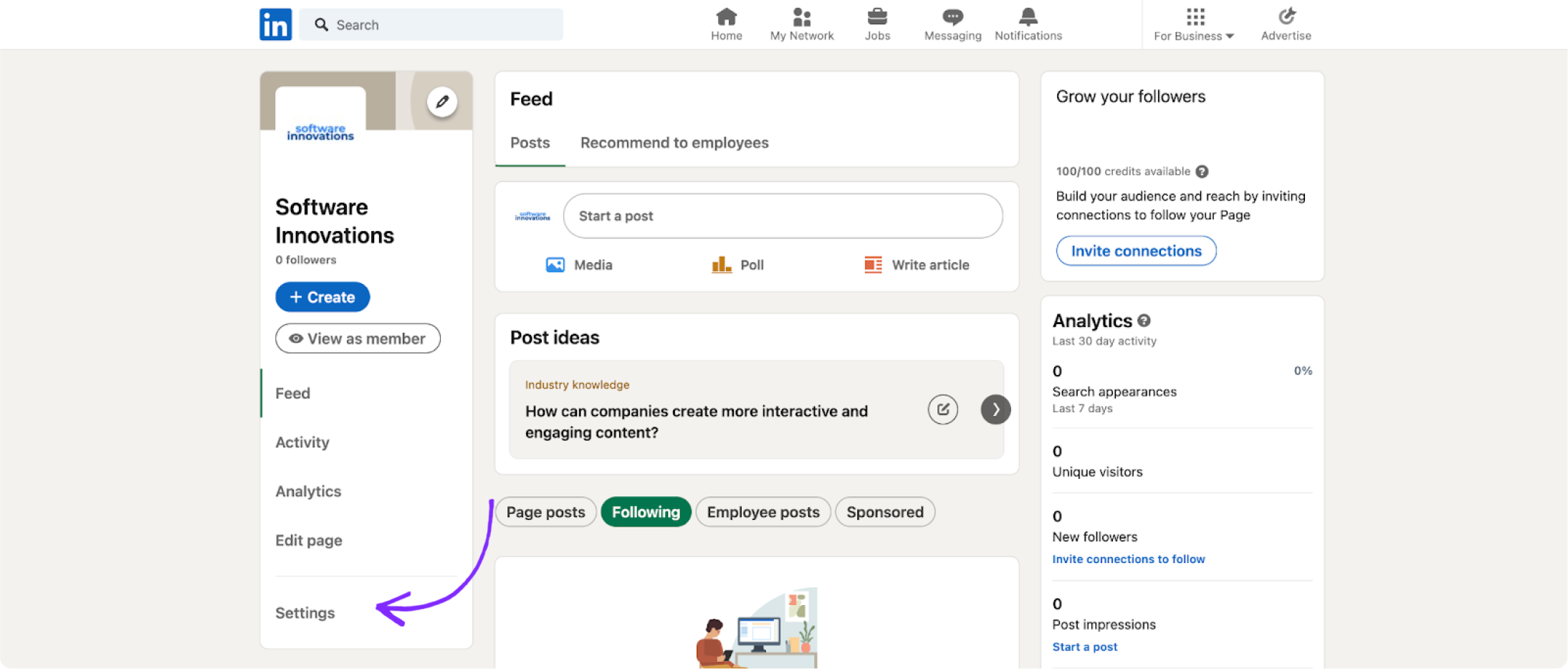
Select Manage admins.
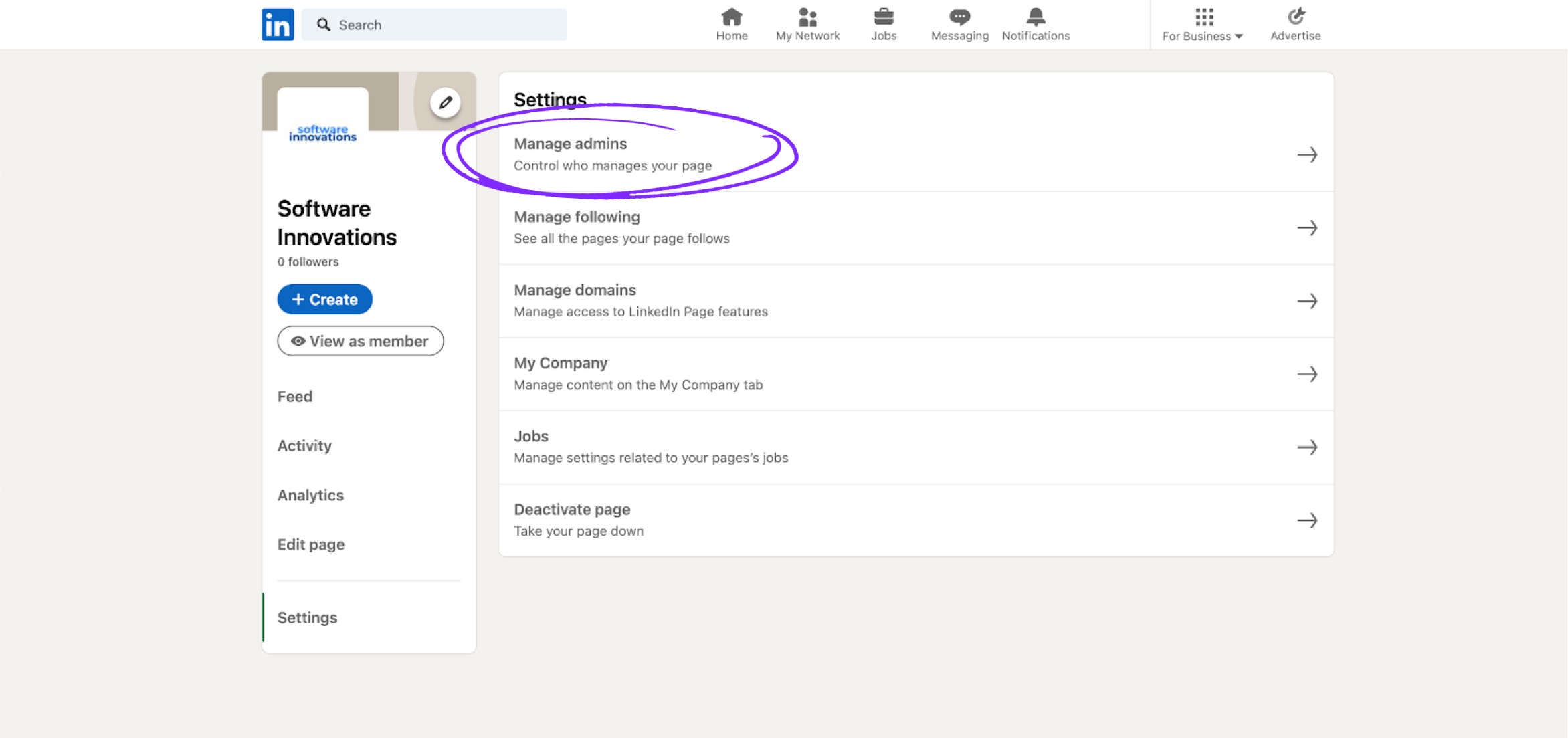
In Manage admins, you'll see a pending access request from Influ2.
Click Review next to Influ2's request.
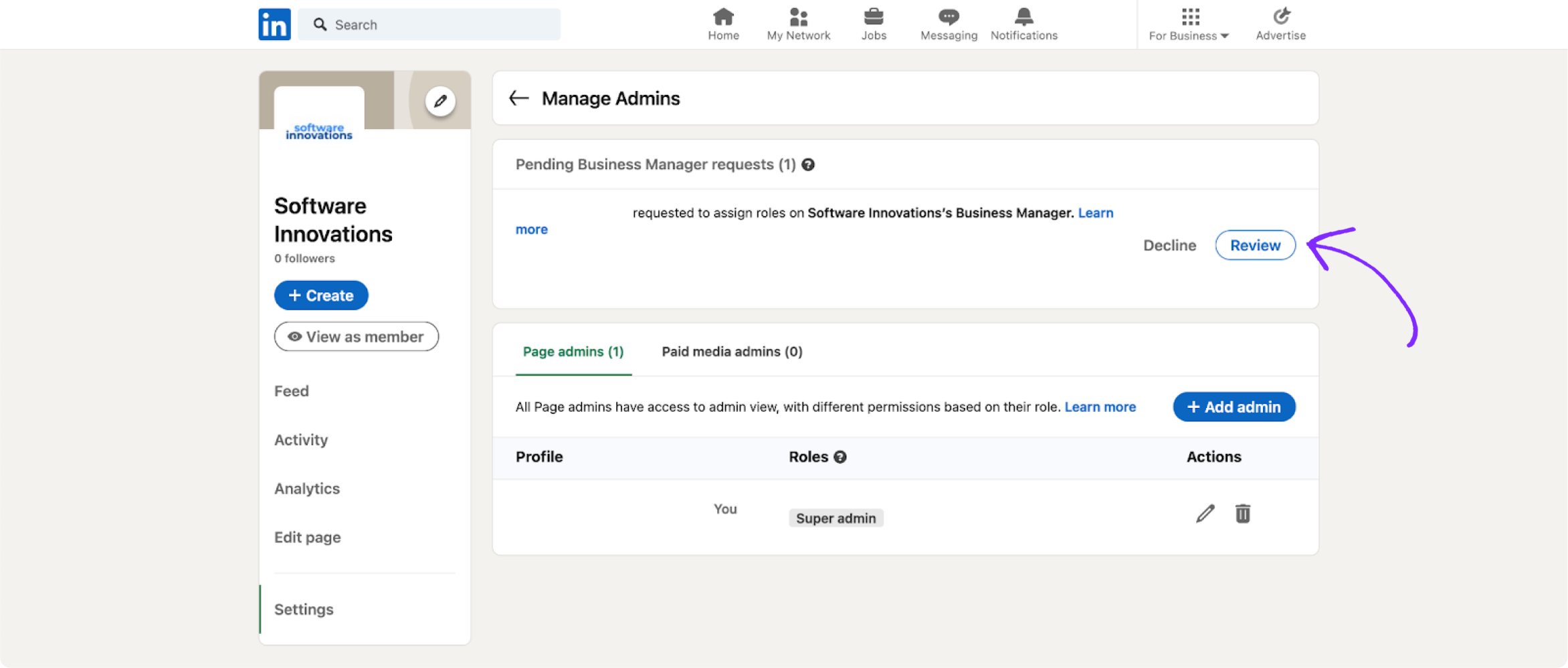
Review the request and click Accept to grant Influ2 "Sponsored content poster" access to your page.
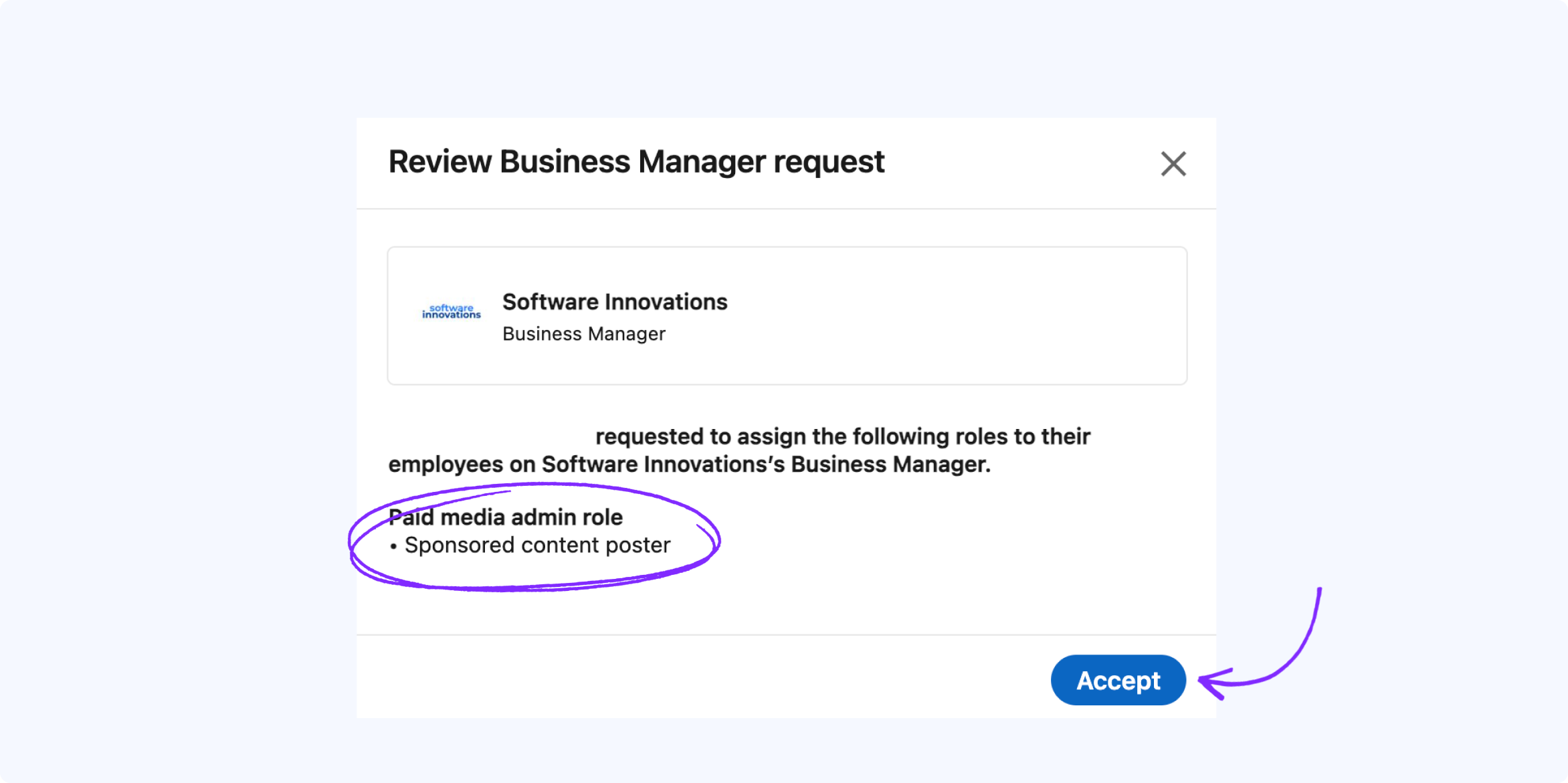
You're all set! Influ2 is connected to your LinkedIn page and ready to run ads.
Option 2: Manually share your page
Check your access permissions
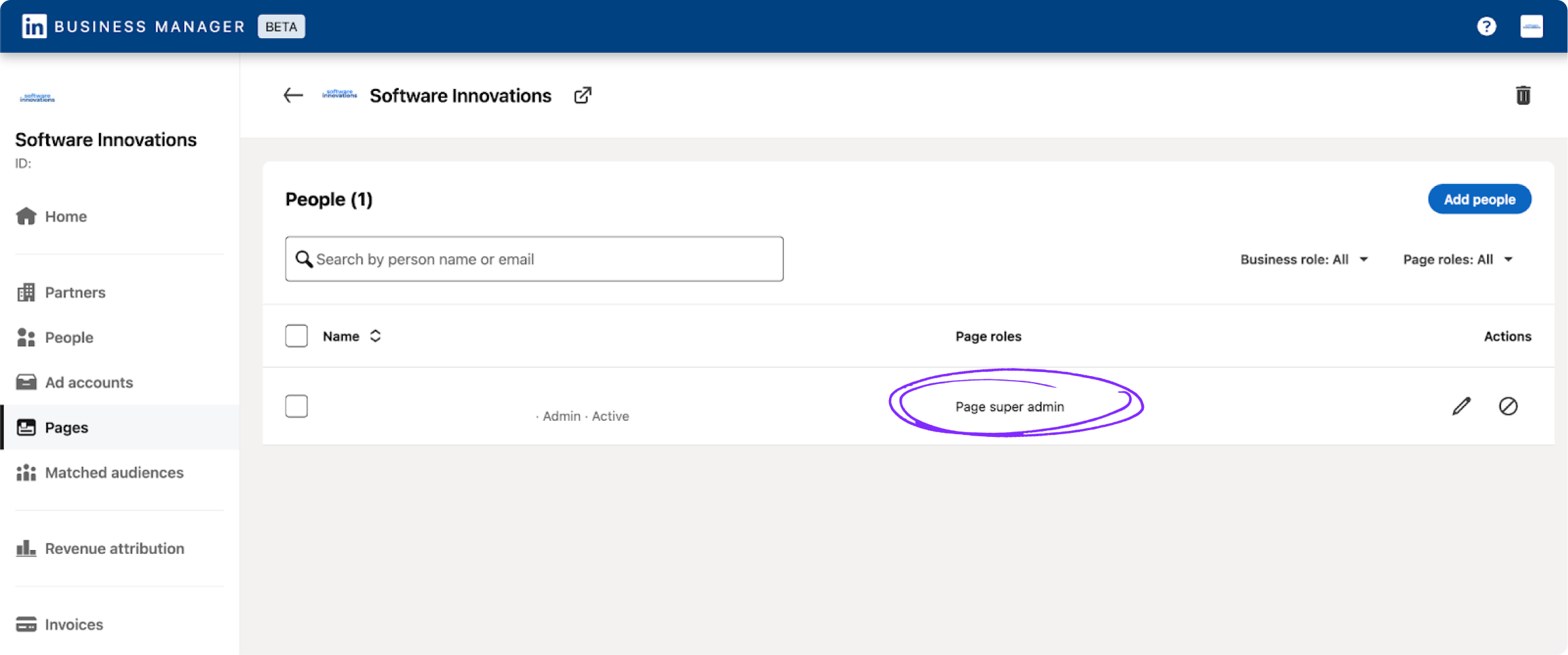
Verify you're listed as "Admin" of LinkedIn Business Manager. Go to Business manager → People and check the business role next to your name.

Verify you're listed as "Page super admin" of your LinkedIn business page. Go to Business manager → Pages and check the page roles next to your name.
Add your LinkedIn page to Business Manager
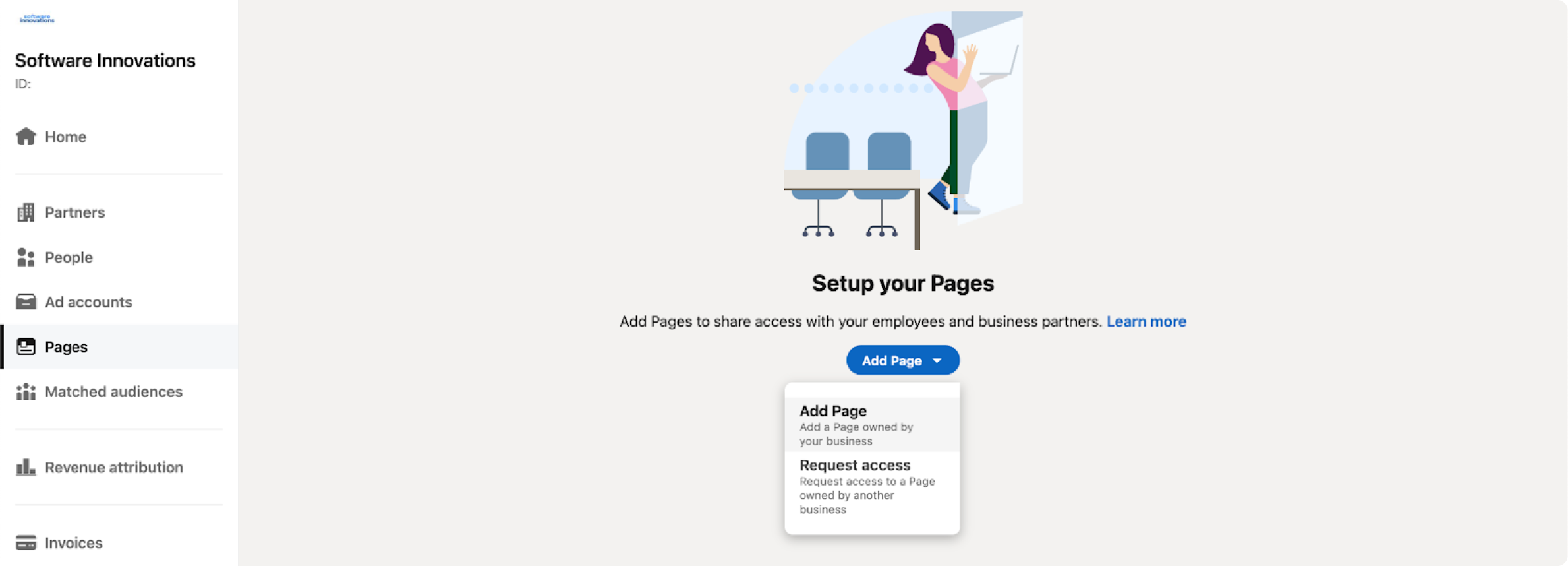
If you don't have your page added to LinkedIn Business Manager yet, go to the Pages section in the left-side menu.
Click Add Page.
Select Add page (add a page owned by your business) from the dropdown.
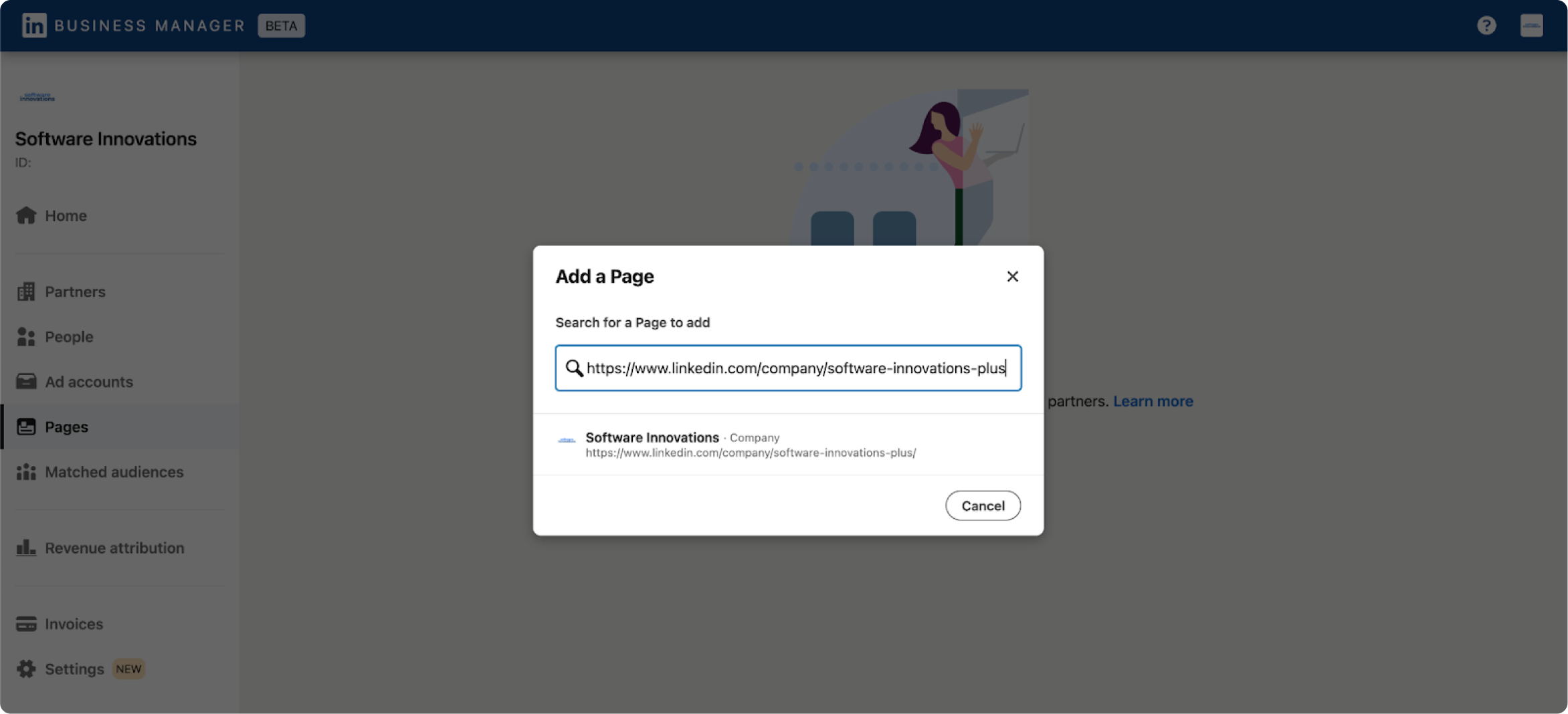
Enter your LinkedIn business page URL to find your page and click on it.
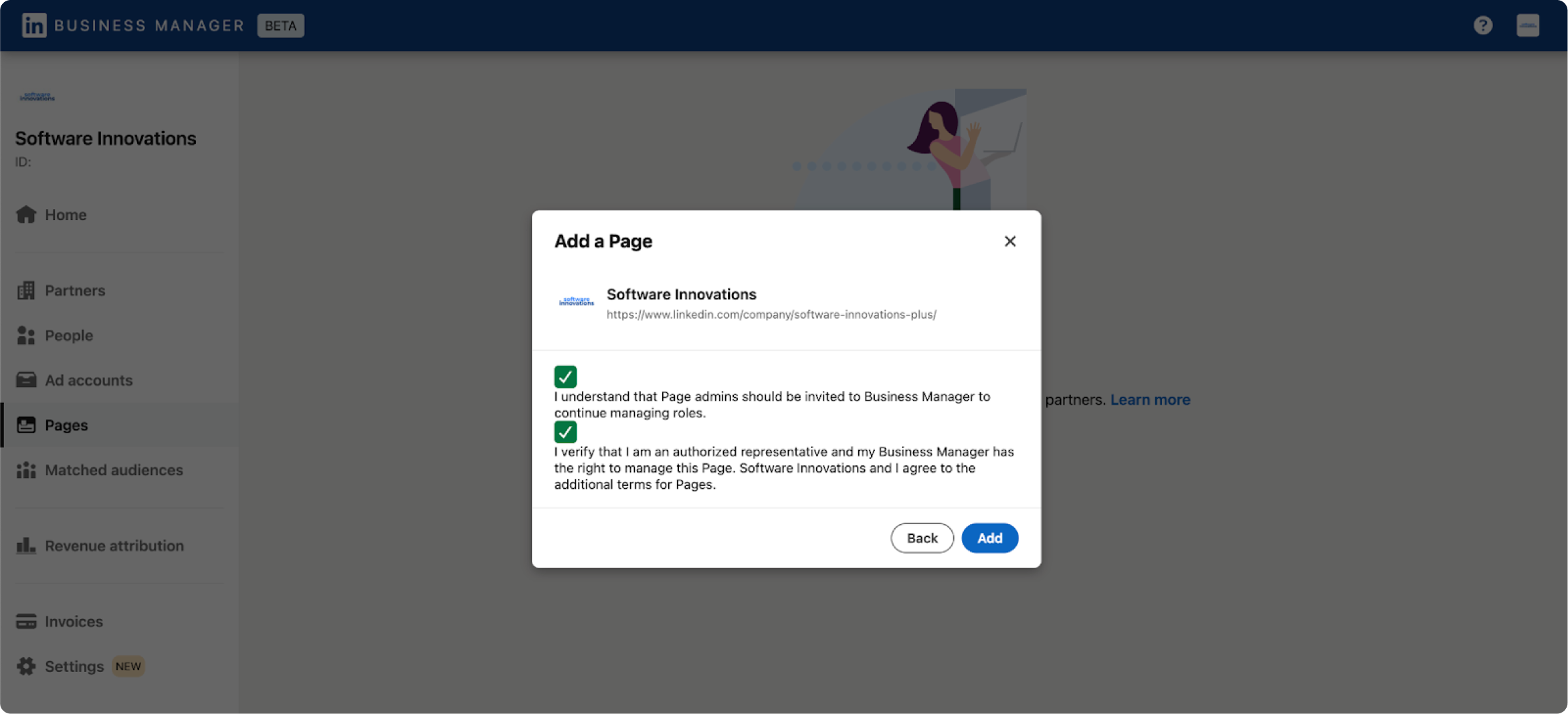
Check the two acceptance checkboxes and click Add.
Set up LinkedIn access manually
From the left-side menu of Business Manager, go to Partners.
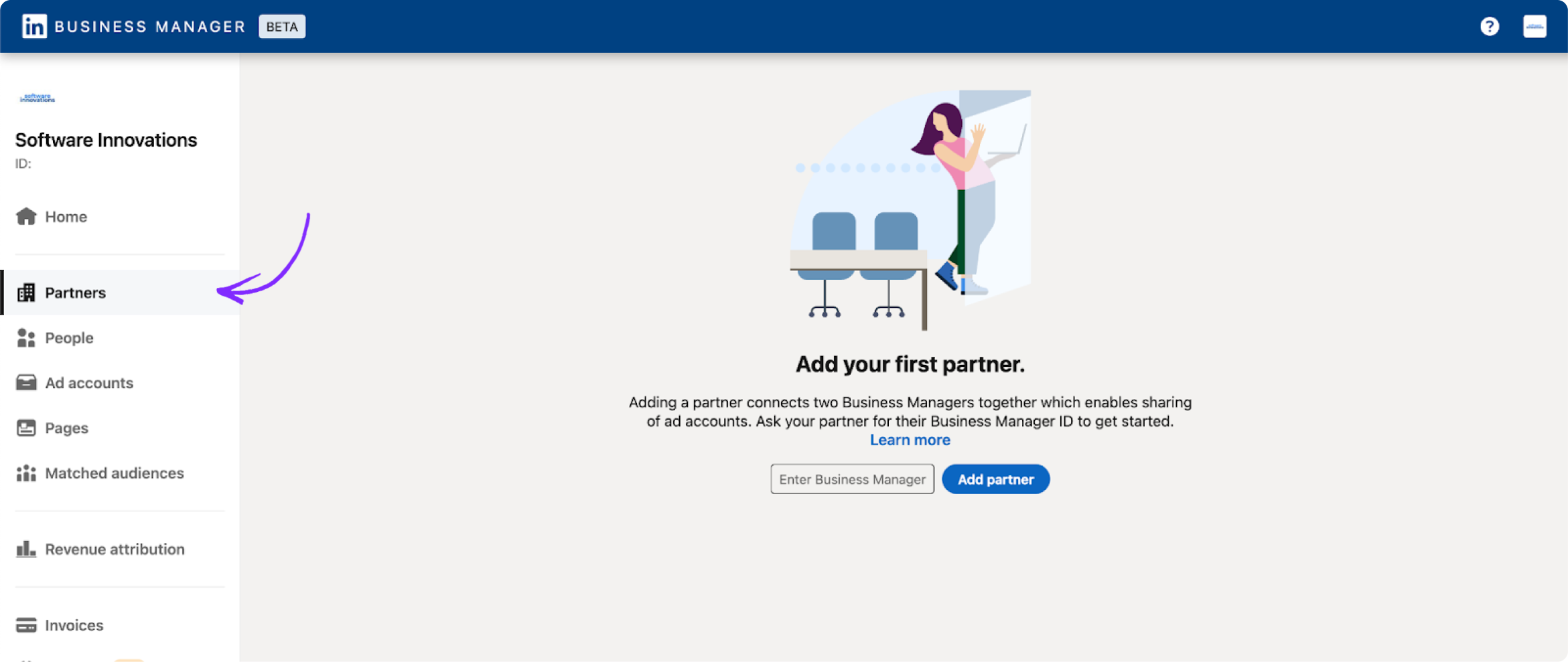
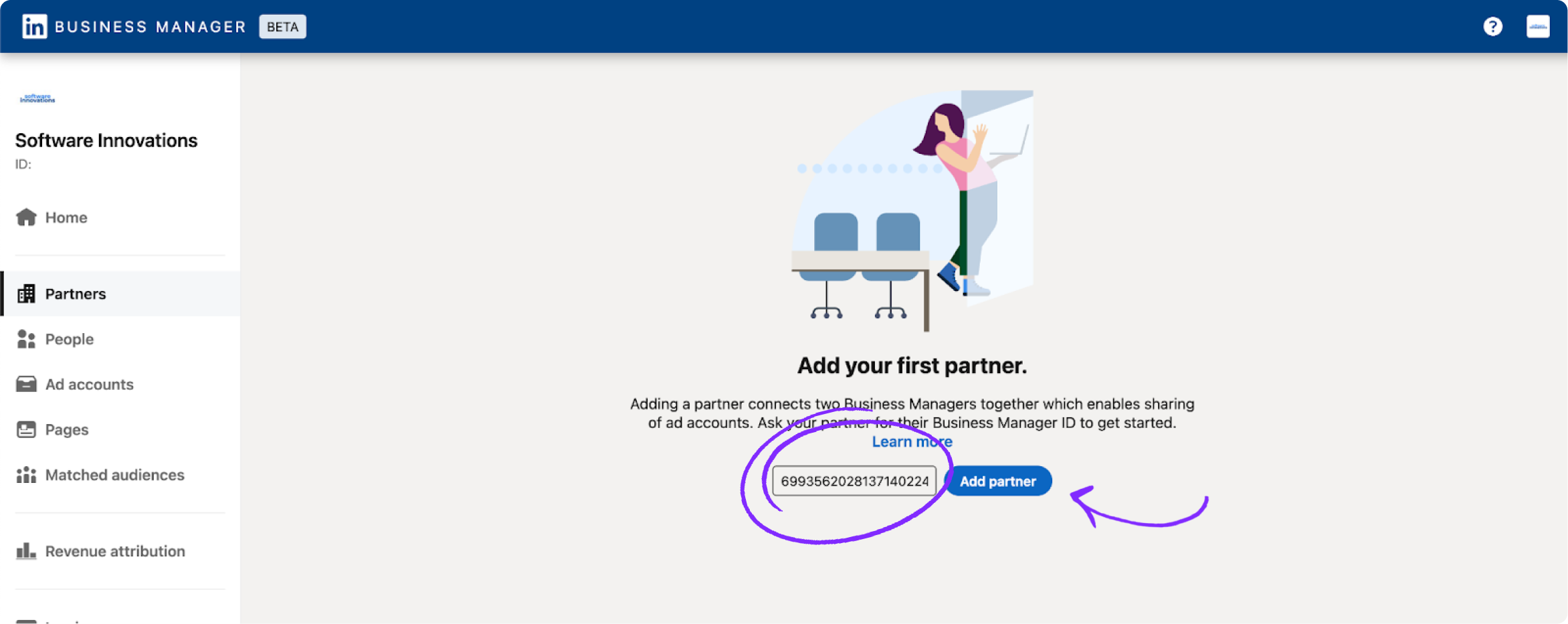
Copy Influ2's Business Manager ID (6993562028137140224) and paste it into the Enter Business Manager field.
Click Add partner to activate the ID.
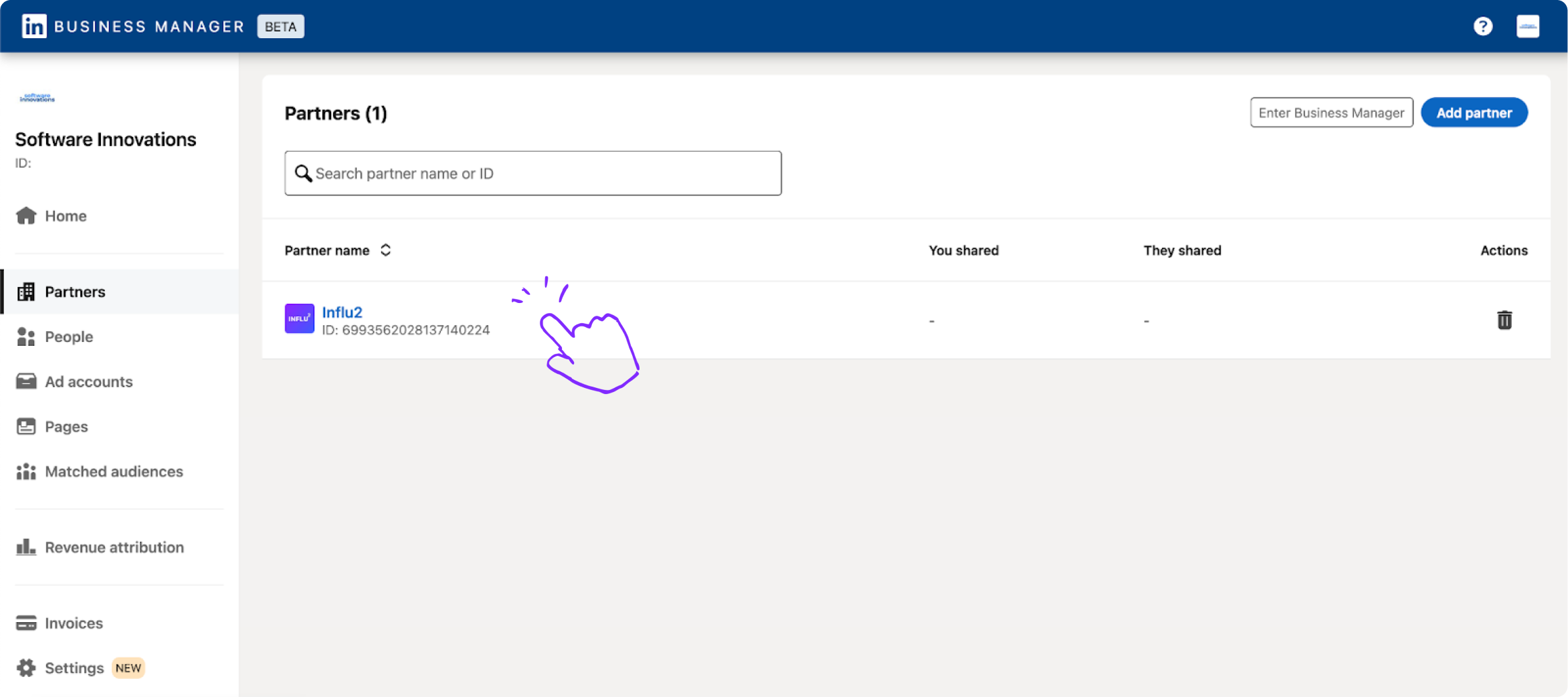
After Influ2 appears on your Partners list, click on Influ2 to open access settings.
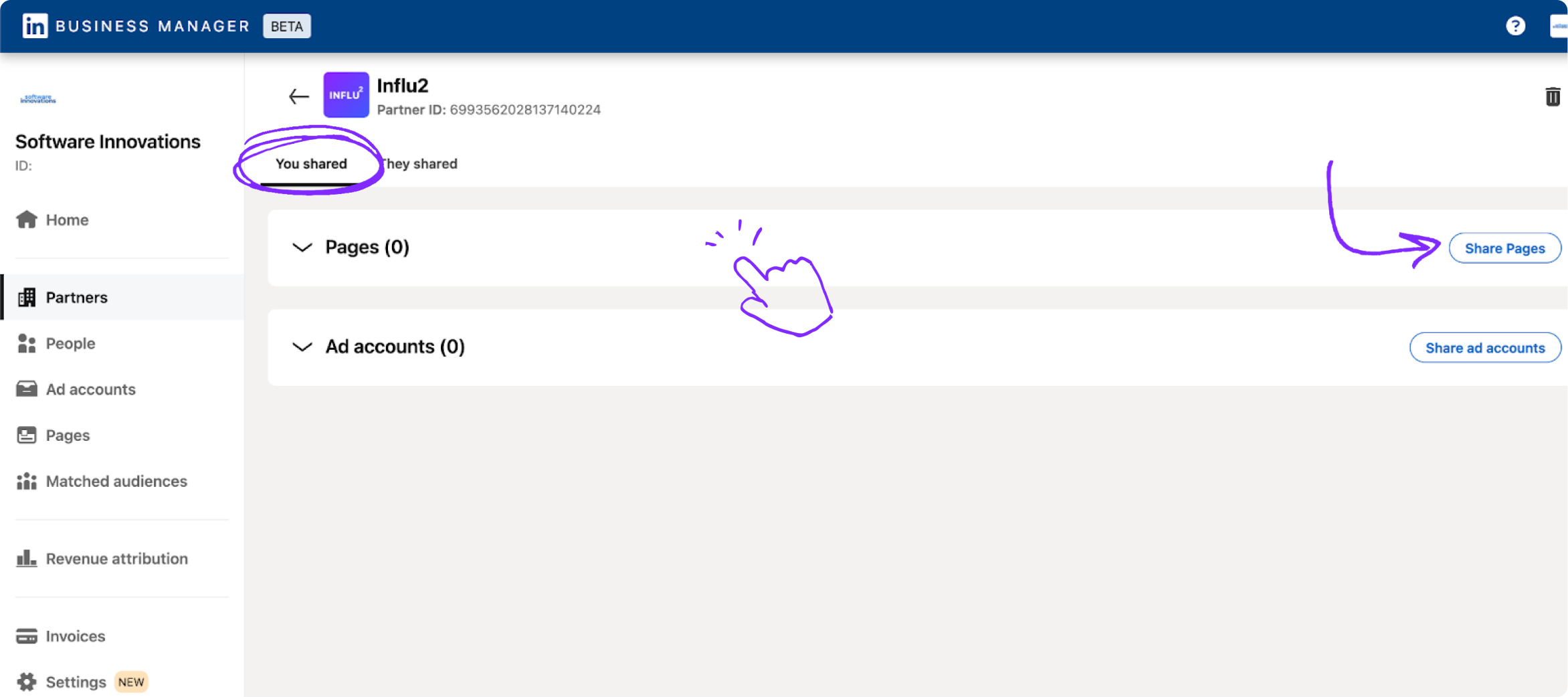
In the You shared tab, click Share pages under the Pages section.
Click Assign role, then scroll down and toggle on Sponsored content poster in the Manage paid media content section.
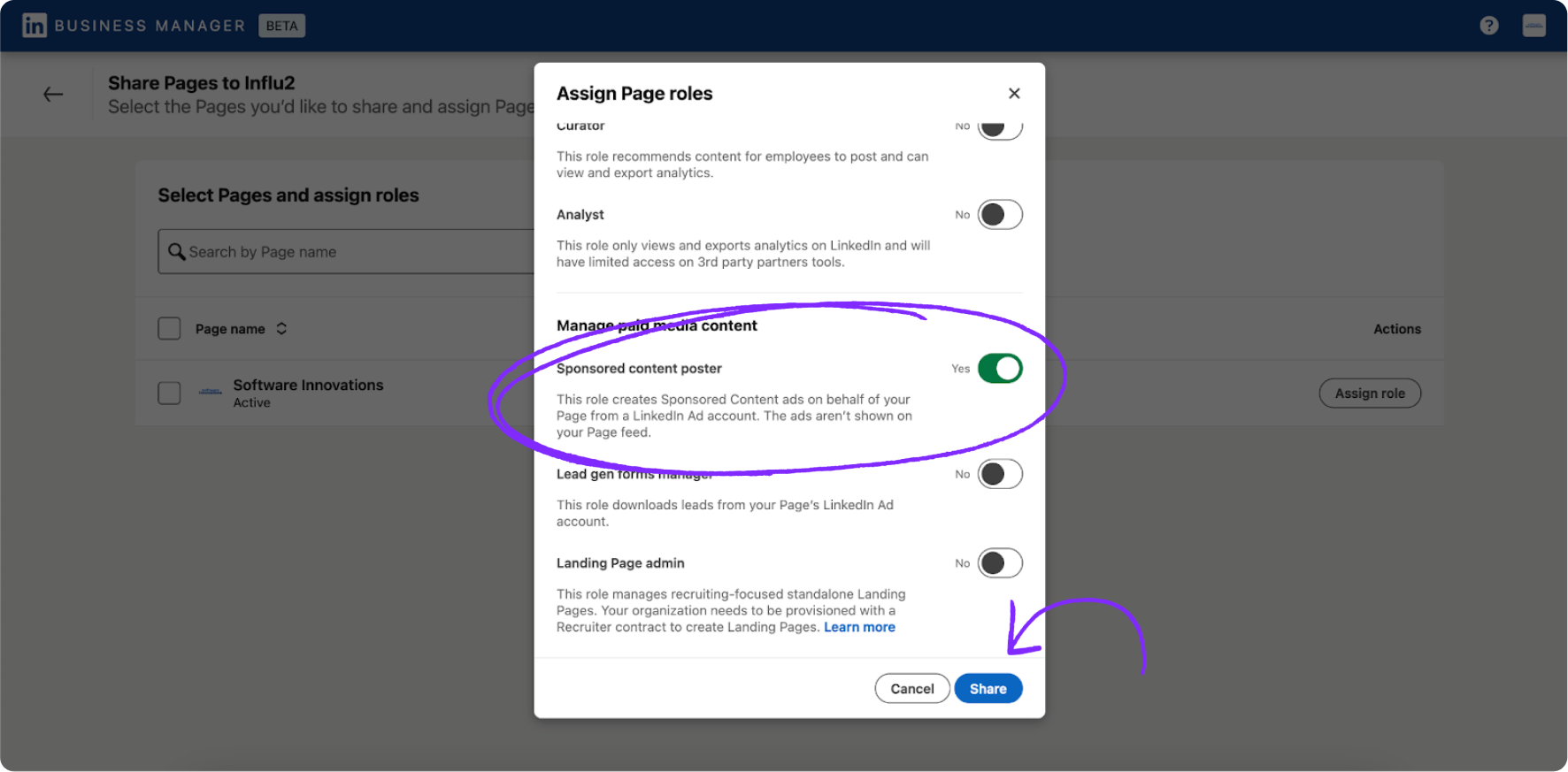
Click Share at the bottom of the window.
You're done! Influ2 now has access to your LinkedIn page and can run ads.