How to Add a Facebook Page to Business Manager
Last updated: April 20, 2026
To run Influ2 ads from a Facebook page, it must be connected to your Business Manager account. This guide walks you through adding your page.
Keep in mind: the page should be at least 5 days old before you go live with ads.
Before you start
Your Facebook page must exist and be at least 5 days old (create it in advance if you plan to launch soon)
You must have full admin rights on the page
You need access to your Business Manager account
Steps
1. Log in to Business Manager
Go to business.facebook.com and log in with your Facebook credentials.
2. Select the correct business account
If you manage multiple Business Manager accounts, make sure you're in the right one. Click the business name in the top-left corner and select the correct account.
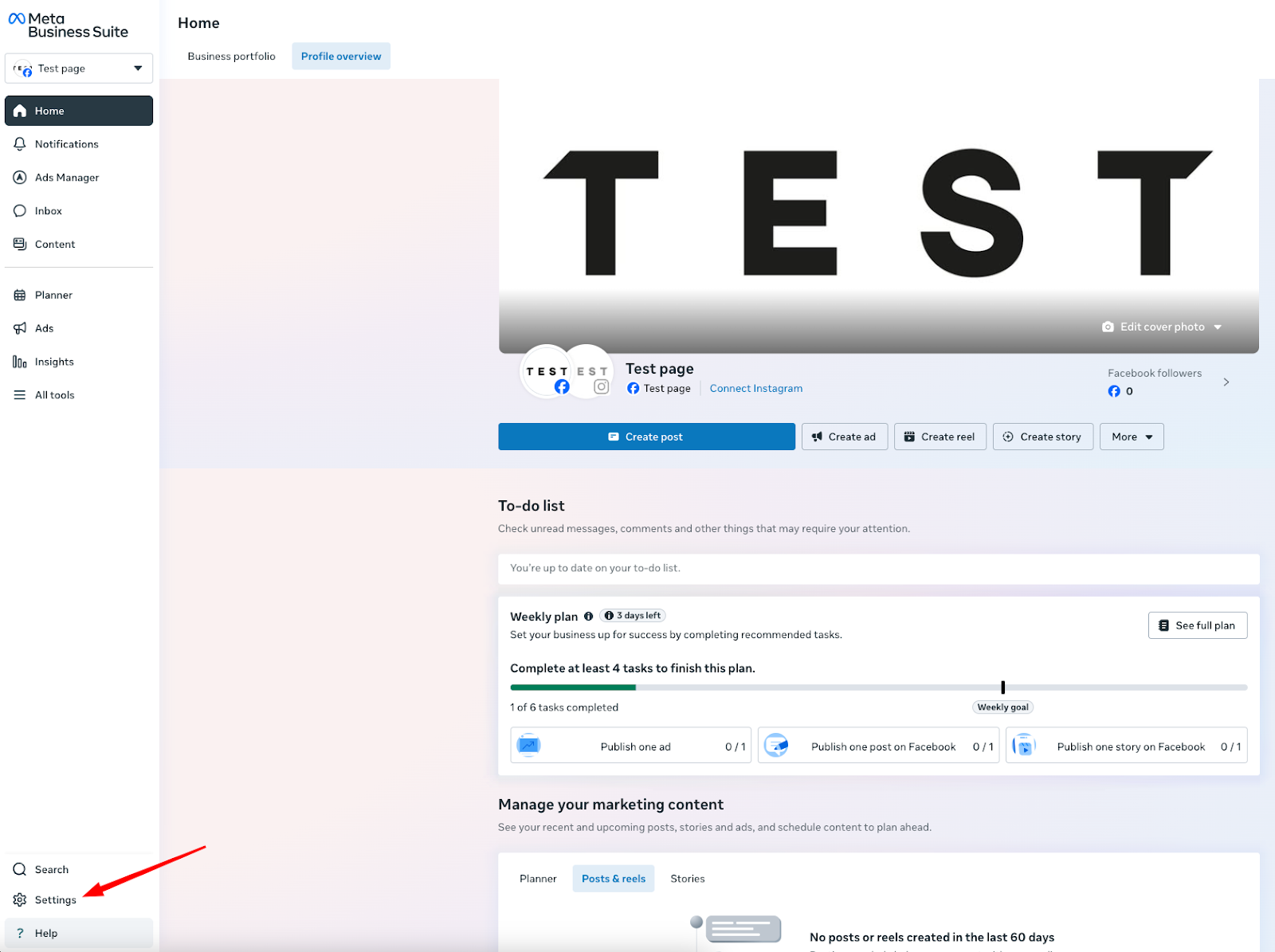
3. Open Business Settings
Click the gear icon (⚙) in the bottom-left menu to open Business Settings.
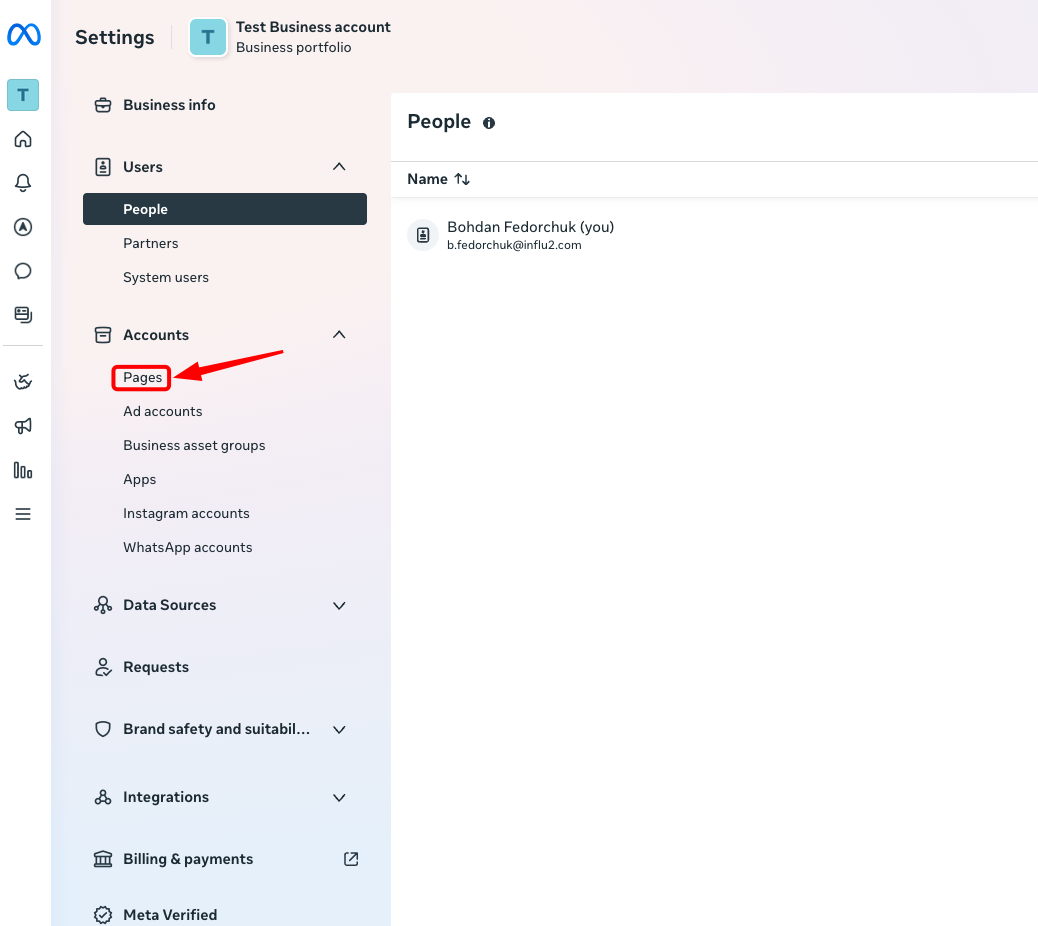
4. Navigate to the Pages section
In the left-hand sidebar under Accounts, select Pages.
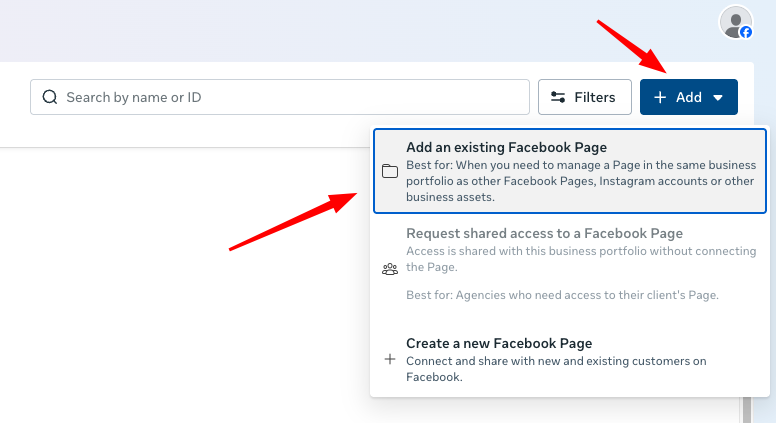
5. Add your page
Click the blue Add button and choose Add a Page (not "Request Access" or "Create a New Page").
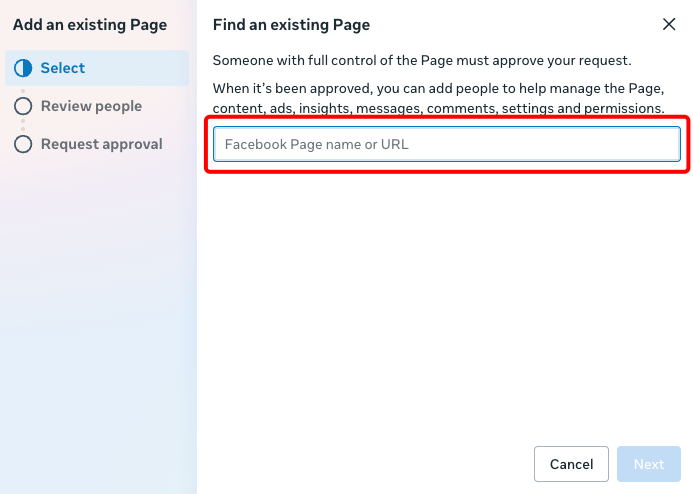
6. Enter your page details
Paste the Page URL or type the exact name of the page
Click Add Page
7. Confirm ownership
If you're already an admin of the page, it will be added instantly.
If you're not currently an admin, you'll need to either:
Get admin rights from the current page owner, or
Have the current owner approve the connection or transfer ownership to you
Important notes
You must have full admin rights on the page to add it to Business Manager
If someone else manages the page, they'll need to approve the connection or transfer ownership to you
What you'll see
Once added, the page will appear in your Pages list in Business Manager. You can now use it to run Influ2 ads.