Salesforce Activity Notifications
Last updated: July 7, 2026
Customers can configure Influ2's Salesforce integration to send buyer signals to Salesforce as soon as they’re captured.
When a signal is detected, Influ2 creates a Salesforce Task or Event assigned to the contact owner of the prospect. The activity describes the action taken and includes all key details needed to follow up and leverage the signal in your ABM programs.
When a signal is detected
Influ2 identifies the contact owner(s) of that target in Salesforce using Followers settings.
A Task or Event is created in Salesforce and assigned to that follower.
Example Task:
If the follower cannot be found, the notification is sent to the integration user.
If a signal fails to generate, the notification for it is not sent.

Notifications for each signal type
Engagement Intent (Click)
[Influ2] Clicked on ad
Description: Interested in contact-level ABM strategies.
Learn more: https://v2.influ2.com/target/...

Engagement Intent (Visit)
[Influ2] Visited landing page after ad click
Description: Interested in contact-level ABM strategies.
Topic: ABM program
Learn more: https://v2.influ2.com/target/...
Search Intent
[Influ2] Searched for intent keyword
Description: Searched for "Influ2." Indicates active interest in Influ2.
Topic: ABM program
Learn more: https://v2.influ2.com/target/...

Company Change – Left Company
[Influ2] Changed company
Description: Left B2B Marketing Inc. and moved to Acme Inc. as VP of Product
Learn more: https://v2.influ2.com/target/...

Title Change
[Influ2] Changed title
Description: Moved to Product Manager from Business Analyst three weeks ago at Acme Inc.
Learn more: https://v2.influ2.com/target/...
Promotion
[Influ2] Promoted to new position
Description: Promoted to CEO from CPO three weeks ago at Acme Inc.
Learn more: https://v2.influ2.com/target/...
Social Intent
[Influ2] Made a post on LinkedIn
Description: Shared post about joining YipitData, Hiring for marketing roles.
Learn more: https://v2.influ2.com/target/...

Content Intent
[Influ2] Content Intent
Description: Checked out content on washingtonpost.com 3 times about B2B Advertising & Channels. Interested in exploring LinkedIn Ads for sales strategies.
Topics: LinkedIn ads
Learn more: https://v2.influ2.com/target/...
Website Visit Intent
[Influ2] - Website Visit
Description: Visited website and checked out content about person-based B2B advertising solutions
Topics: Contact-level ads
Learn more: https://v2.influ2.com/target/...
API usage limits
Influ2 allows you to set a limit on the number of API requests sent to Salesforce per day. If your integration approaches or reaches this limit:
At 90% of your limit, Influ2 will send a warning email to your Salesforce integration user.
At 100% of your limit, Influ2 will send an alert email and stop sending events until the limit is increased or resets.
You can adjust your API request limit at any time in your Salesforce integration settings.

If notifications were blocked due to reaching the API limit, Influ2 will automatically re-send all undelivered notifications once a new limit is available.
Configure which signals trigger notifications
You control which signal types send notifications to Salesforce. Go to Settings > CRM notifications and enable or disable:
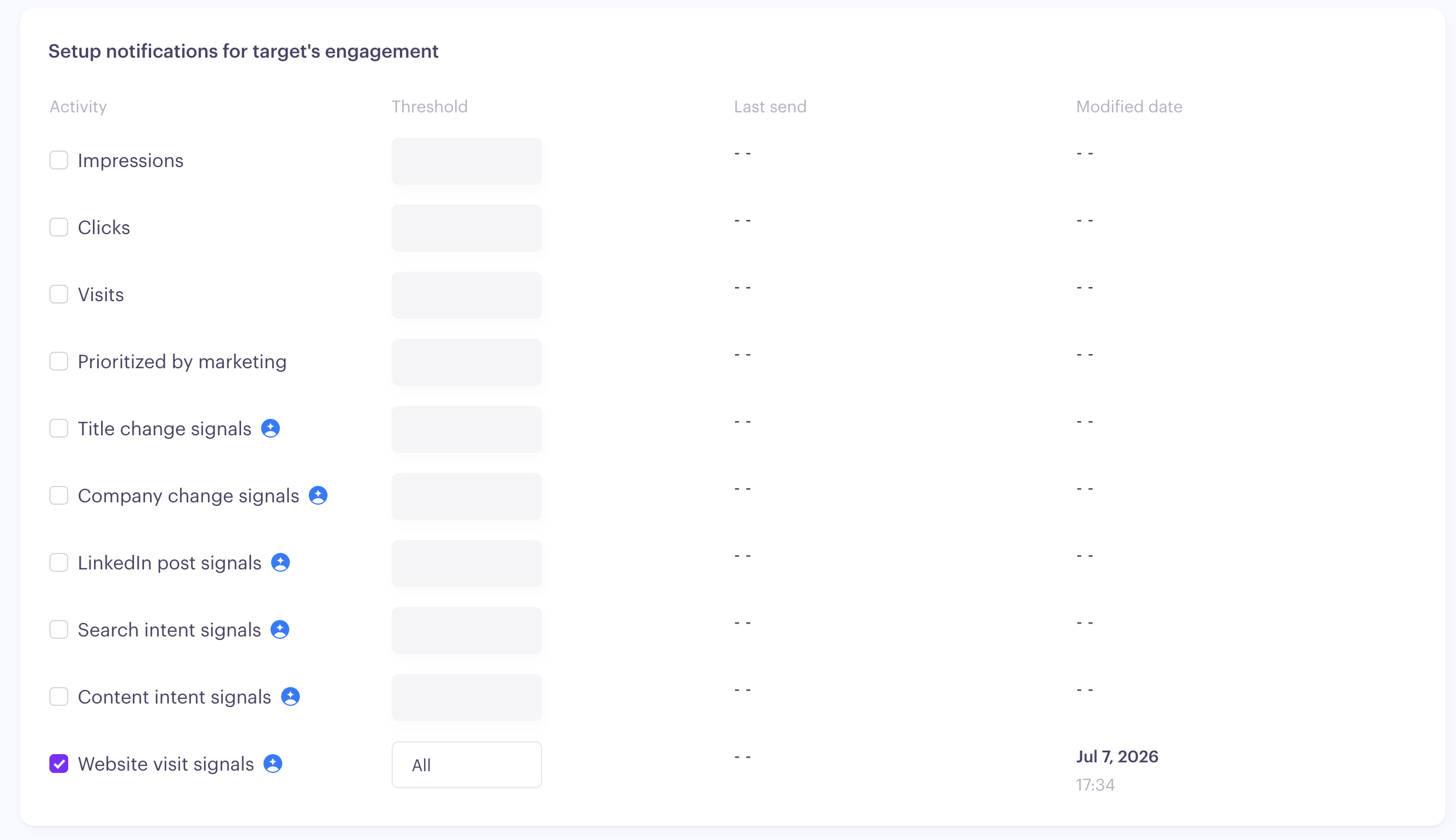
Title Change
New Hire
LinkedIn Post
Search Intent
Website Visit
How this helps your sales team
When a signal lands in Salesforce, the contact owner gets immediate context about why they should reach out. Instead of cold calling, your reps are responding to real intent—which means faster conversions and more personalized conversations.