How to install the Signals Center widget in Salesforce
Last updated: April 19, 2026
You can bring Influ2 engagement signals directly into Salesforce with the Signals Center widget. This puts buyer engagement data where your sales team already works — no tab-switching needed.
Before you start, you'll need:
Admin access to your Salesforce organization
The installation link for your organization (provided by Influ2)
Steps
Open the installation URL in your browser and log in to your Salesforce org.
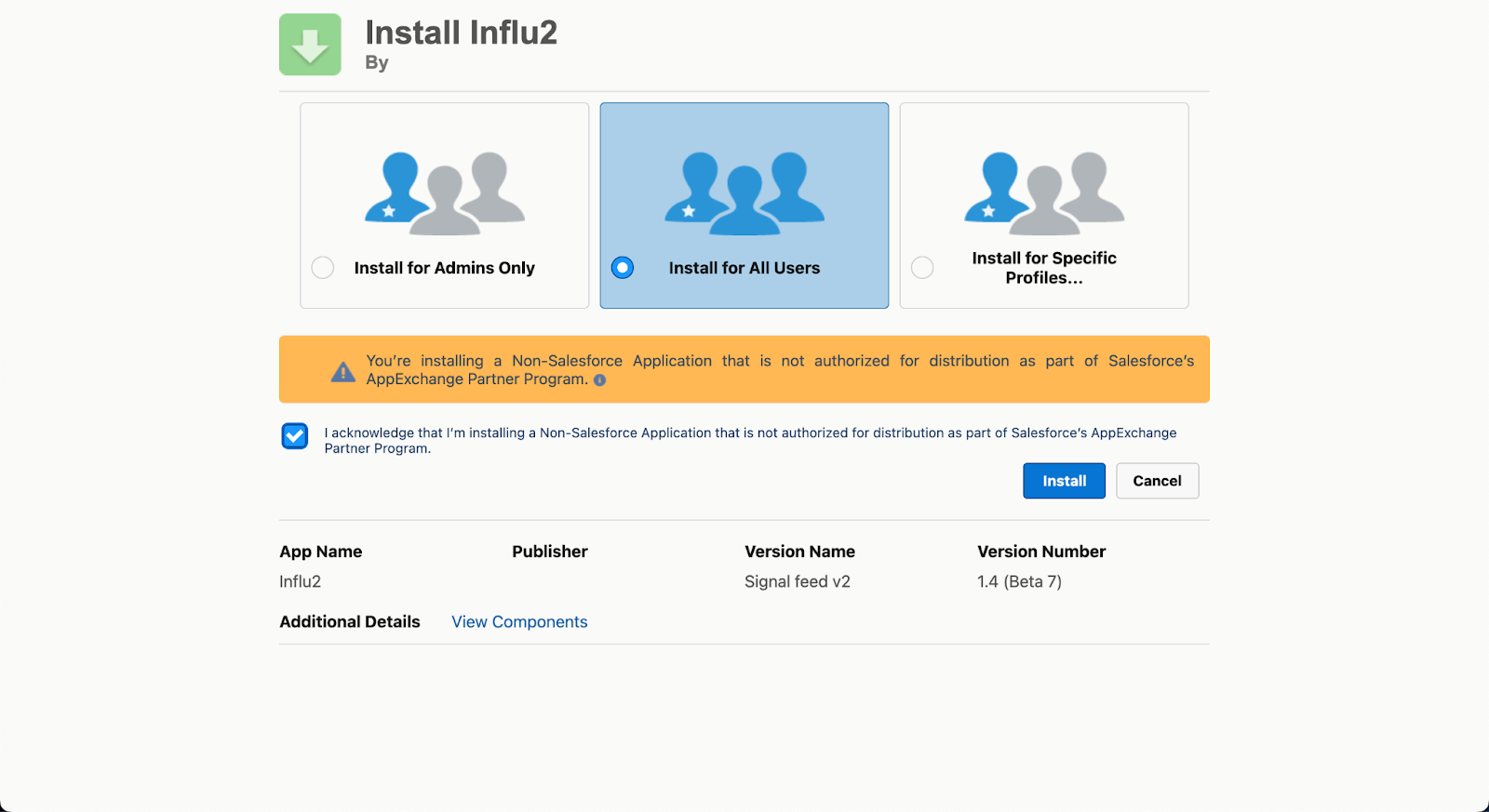
Select Install for All Users (recommended) to make the widget available to your entire team.
Check the acknowledgment box confirming you're installing a Non-Salesforce Application.
Click Install and wait for the process to complete.
You'll see "Installing and granting access to all Users..." during setup. Once done, Salesforce confirms "Upgrade Complete!"
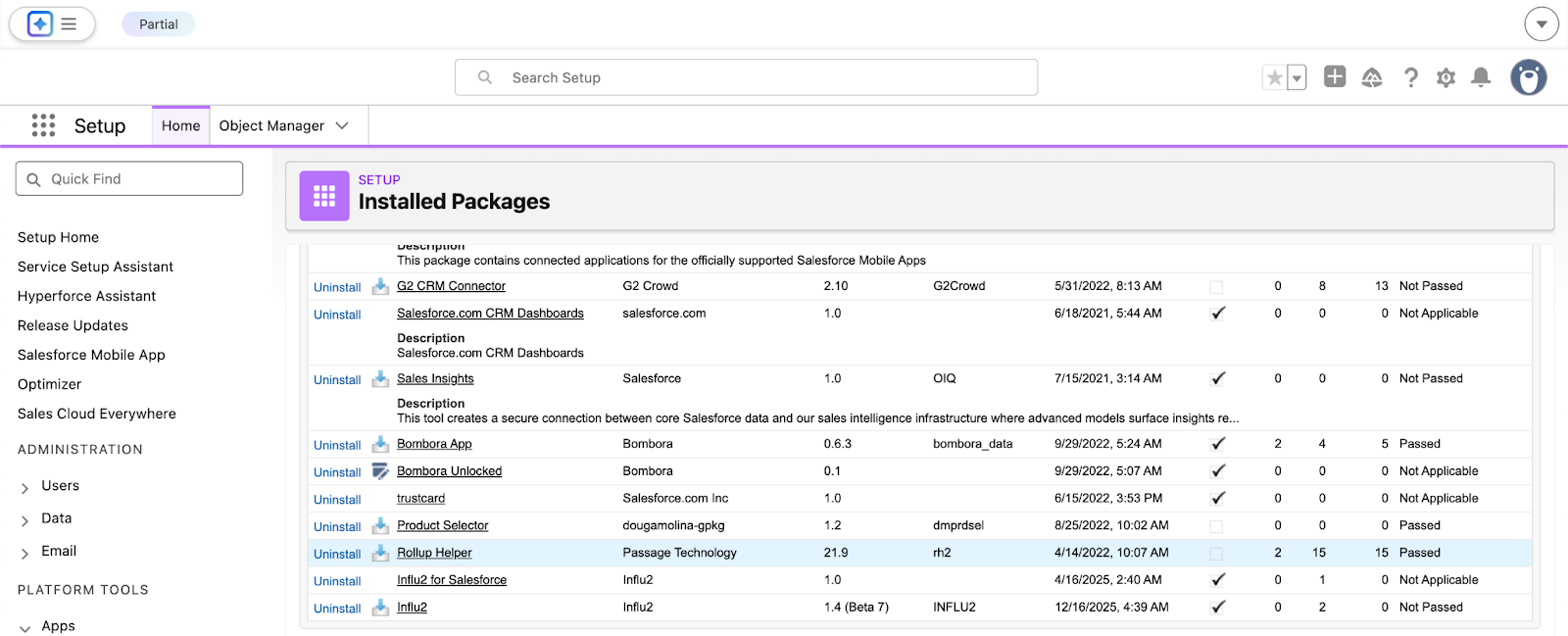
Verify the installation by going to Setup > Installed Packages. You should see Influ2 listed.
Enable the Signals Center Feed widget
The Signals Center Feed widget displays your full Influ2 feed as a navigation tab in Salesforce. To add it:
Go to Setup (click the gear icon) and select App Manager.
Find the app your sales team uses and click Edit.
Go to Navigation Items and find Influ2 Signals Center.
Drag it to the right side to enable it, then use the arrow buttons to set its position in the navigation bar.
Click Save.


Add the Prospect Details widget to Contact and Lead records
This widget shows signals filtered for each specific contact — so your team sees only the signals relevant to that person.
Go to Setup > Objects > Contact > Lightning Record Pages (repeat for Lead records).
Select the active record page and click Edit.
Create a new tab and name it "Influ2 Prospect Details".
Add a Visualforce component and select ContactSignals as the Visualforce Page Name.
Turn off Show label and set the height to 800 pixels.
Click Save.
Repeat these steps for both Contact and Lead objects.


Add the Prospect Details widget to Account records
This version shows all signals across the account without filtering by a specific contact — you'll see the complete picture of buying group activity.
Go to Setup > Objects > Account > Lightning Record Pages.
Follow the same steps as the Contact/Lead setup above.
This configuration automatically displays all buying group members and signals for the entire account.
What you'll see
Your sales team now has instant access to Influ2 engagement signals directly within Salesforce across Contact, Lead, and Account records. Each widget updates automatically as new engagement data comes in.,
