How to provide billing details for invoicing setup
Last updated: April 18, 2026
Influ2 requires billing information to send accurate invoices for your subscription. You can enter these details during your first login or update them anytime in your account settings.
You must complete billing information before launching any campaigns. If details are missing, programs can't be launched and creatives will be paused by default.
Steps to add billing details
Log in to your Influ2 account.
Go to Settings (located in the main menu).
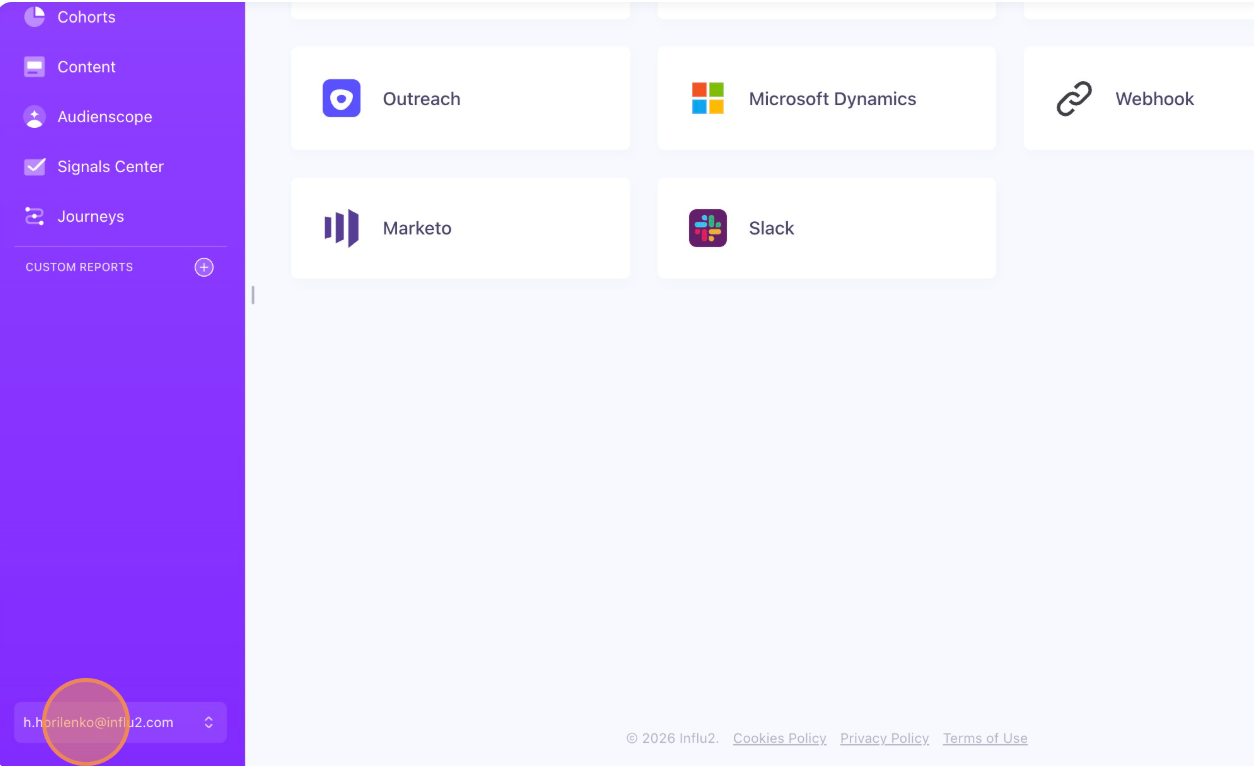
Select Billing.
Fill in the requested information. Fields marked with an asterisk (*) are required.


Click Save once you've filled in all required fields.

Billing information fields
First Name (optional, max 150 characters)
Last Name (optional, max 150 characters)
Company (required, max 250 characters)
Email (required, max 255 characters)
Phone (optional, max 50 characters)
Address Line 1 (required, max 150 characters)
Address Line 2 (optional, max 150 characters)
Address Line 3 (optional, max 150 characters)
City (required, max 50 characters)
Zip/Postcode (required, max 20 characters)
Country (required selection)
State/Region (optional for most countries; for U.S. users, select from a list of states; for other countries, max 50 characters)
Add additional invoice recipients
If you want to CC Finance team members or other stakeholders on invoice emails, add their addresses in the CC field, separated by commas.
Example: billing@yourcompany.com, finance@yourcompany.com

Requesting a purchase order (PO) number on invoices
If a PO number must appear on your invoices, contact your Customer Success Manager. They'll coordinate the necessary steps to have it added to future invoices.