How to Add and Manage Intent Topics and Keywords
Last updated: April 20, 2026
Intent topics group related keywords, ad content, and intent signals under one theme. Instead of looking at isolated keywords or single ads, topics help you understand which themes are driving engagement and where buyer interest is focused. This guide covers setting up topics and keywords for signal collection and journey mapping.
What topics and keywords do
Organize Audienscope keywords for signal detection
Categorize ad content and social intent so related content rolls up into clear interest themes
Enable journey mapping by defining which topics should trigger the next stage
Filter signals in Signals Center so sales teams can find relevant signals quickly
Before you start, you'll need:
Admin or Manager role to create or edit topics and keywords (Viewers can only view assigned topics)
An active Audienscope subscription for keyword signal collection
Steps
Go to Account Setup
Go to Settings → Account Setup
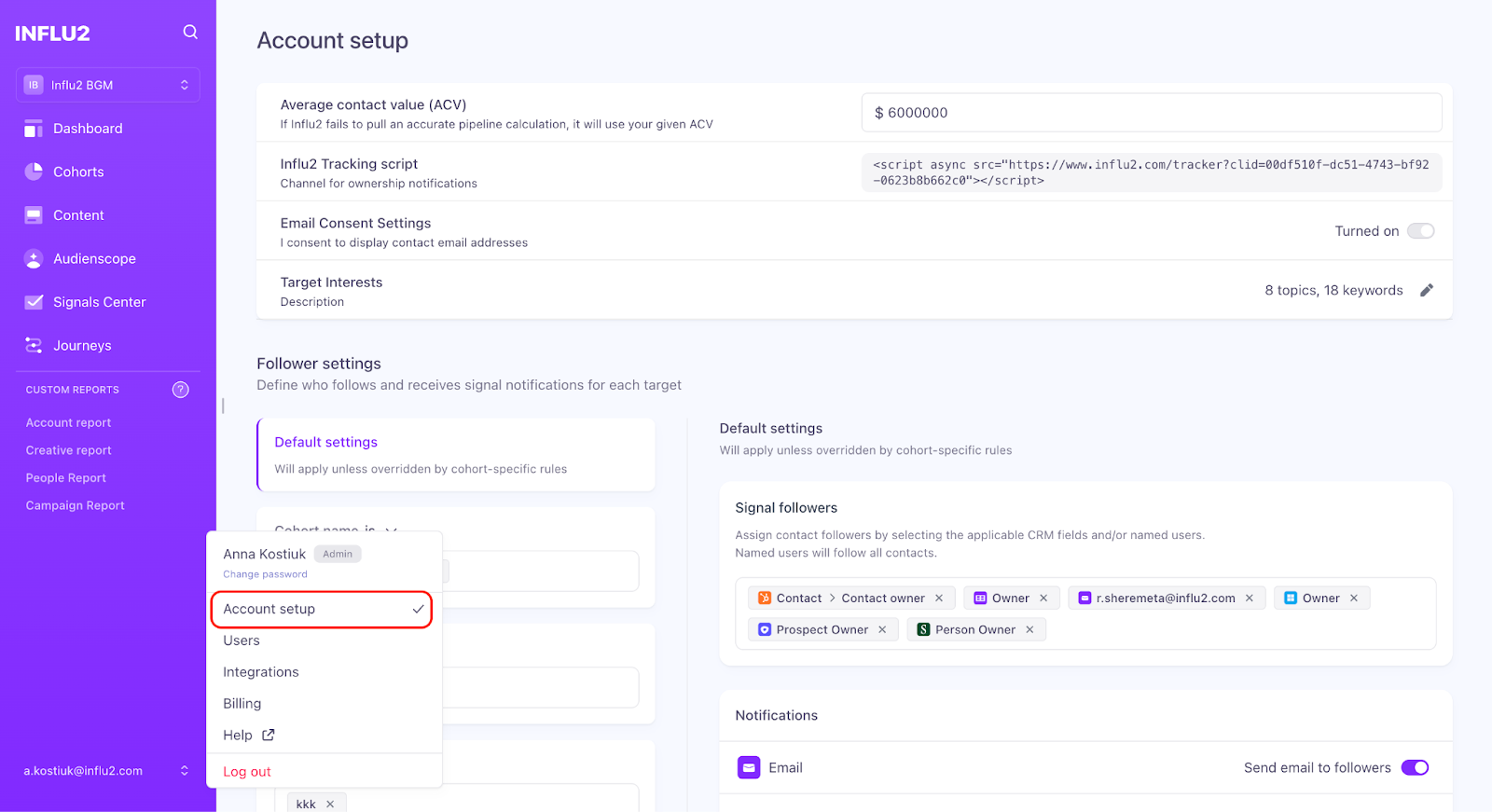
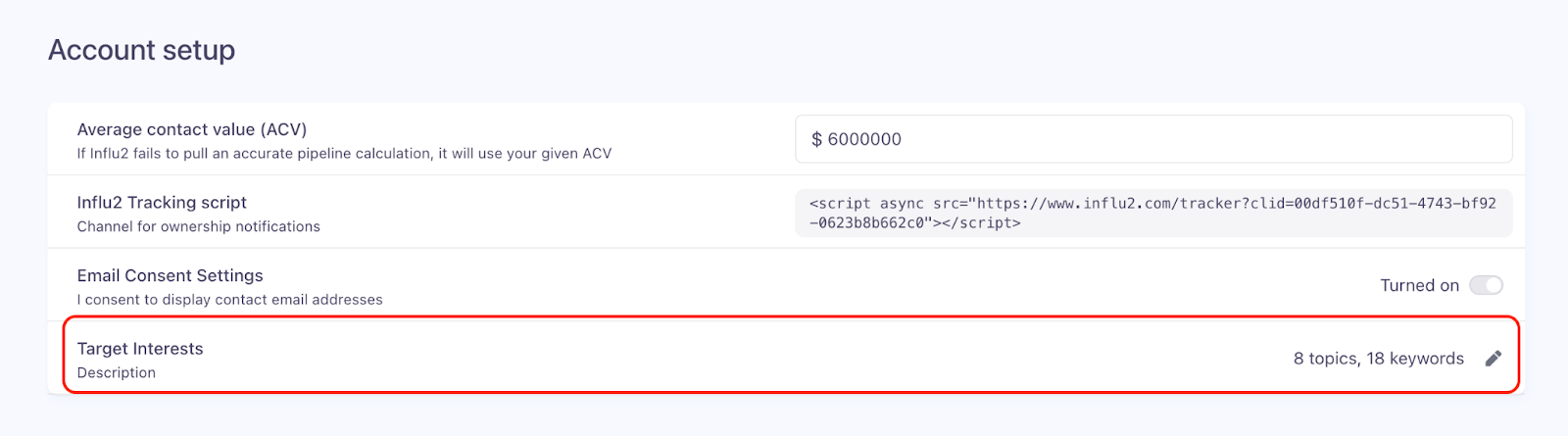
On the Account setup page, click the Edit icon next to the Target Interests section.
You'll see two sections: Topics and All Keywords
Add Intent Topics
In the Topics section, type or paste topics (one per line)
The system automatically removes extra spaces and deduplicates entries
Click Add topics
New topics appear at the top of the list

Managing topics:
Rename: Click inline to edit a topic name. The system validates that the new name doesn't already exist
Delete: Select one or more topics using checkboxes, then delete. Associated keywords become unassigned (not deleted)
Add Keywords
Go to the All Keywords tab
Type or paste keywords into the input field at the bottom (one per line)
Click Add keywords
Before saving, Influ2 automatically:
Removes duplicates
Removes special characters (@, \, ^, comma, =, !, backtick, <, >, [, ], (, ), %, |, ?, ;, ~)
Converts all keywords to lowercase

Assign Topics to Keywords
From the All Keywords tab:
1. Select keywords from the list using checkboxes
2. Click Assign topic

3. Select the topic from the dropdown
4. A keyword can be assigned to multiple topics
From the Topics tab:
1. Click the arrow icon next to a topic to expand it
2. Type keywords in the input field
3. These keywords are automatically assigned to that topic
4. If a keyword already exists in another topic, it's additionally assigned (not duplicated)

How to Unassign Keywords from Topics
Go to the Topics tab
Expand the topic by clicking the arrow
Select the keyword you want to remove
Click Unassign

The keyword stays in your keyword list—it's just no longer linked to that topic.
6. Find Unassigned Keywords
To see which keywords don't have a topic:
Go to Topics tab
Select Unassigned

An Unassigned category automatically appears if at least one keyword has no topic. Use this to clean up or reorganize your keywords.
Using topics in ad content
Topics assigned to ad content help categorize engagement intent signals from clicks and organize content within Journeys.
To assign topics to ad content:
Go to the Content tab
Find the ad you want to tag
Click Add topic
Select one or more topics from the list
You can assign multiple topics to one piece of content.

When creating new content: Influ2 can suggest topics based on your ad content and images. AI suggestions appear after you add 2 fields + an image (for image ads) or 2 fields (for video ads). Click Refresh to update suggestions. AI only triggers if no topic is already assigned and topics exist in Account Settings.

When a topic is deleted from Account Settings, it's automatically unassigned from all related content.
Using topics in journeys
You can use intent topics as stage transition criteria.
In your Journey builder, select Target Interests under the Influ2 Engagements group
Select the topics that should trigger a transition to that stage
Choose the time window for when the interest occurred


Testing messaging with topics
Use intent topics to test different value propositions early, then personalize based on real engagement:
At the start of your journey, expose prospects to multiple messages (different products, different value props)
Track which topics each person engages with through clicks, searches, content intent, or LinkedIn posts
Once they show interest in a specific topic, move them to a stage where all messaging focuses on that theme
This delivers highly personalized experiences instead of one-size-fits-all generic journeys.
Using topics in Signals Center
Topics make it easier for sales to understand prospect intent and craft relevant outreach.
Signals associated with topics show a topic tag underneath
Use the Interests filter in the filter menu to find signals related to a specific topic
Assigning topics to social signals
In Signals Center, you can assign topics to LinkedIn post signals:
Click on a post signal
Select one or more topics from the dropdown (sorted by date added, with search support)
Apply

Influ2 can also suggest topics for posts using AI. AI triggers when a post is ready for analysis and topics exist in Account Settings. The AI model analyzes the post content and suggests up to 3 topics with confidence scores.
When a topic is deleted from Account Settings, it's automatically unassigned from all related social signals.
FAQs
Are changes to topics applied retroactively to existing signals?
Yes. Changes to topics are applied retroactively to existing signals. If you change a topic (make it broader or more specific), all past signals containing that topic automatically update to the new topic.
How are topics assigned to social intent?
Influ2 uses AI to analyze LinkedIn post text and automatically assign the most relevant topics. Assignment follows explicit, evidence-based rules: topics are only assigned when there's clear, direct evidence in the post (brand names only when explicitly mentioned; competitors only when directly named).