Implementing the Influ2 Tracking Code Pixel
Last updated: April 19, 2026
Adding the Influ2 tracking code to your website captures visitor intent signals so Influ2 can match those behaviors with your campaigns.
While you don't have to add it to every page, we strongly recommend at minimum installing it on your homepage and key landing pages.
What the tracking code does
When properly installed, it:
Captures visitor behavior signals in real time
Tracks both first-time and repeat visits
Records how long visitors spend on each page
Enables smarter audience targeting within Influ2
Helps match ad interactions to later sales events
Before you start
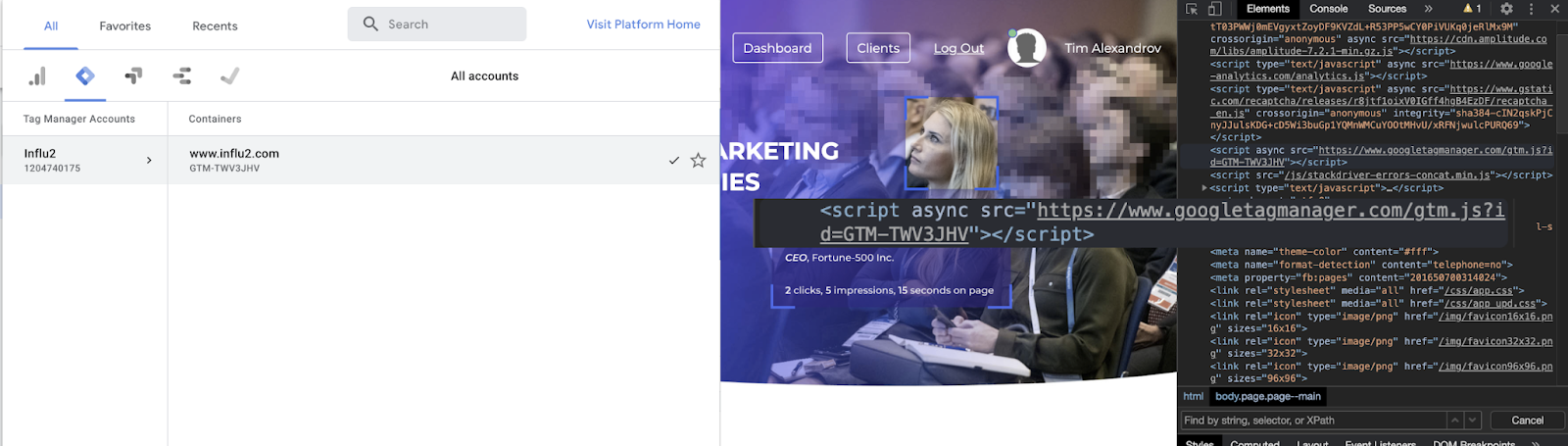
Confirm that Google Tag Manager (GTM) is installed on your website. If you're unsure, ask your web or marketing tech team.
Quick GTM check
Open your GTM container in Google Tag Manager.
Note the GTM ID (looks like "GTM-ABC123").
Visit your website, open the browser's inspect tool (right-click > Inspect), and search the page source for that GTM ID.
If you find it, GTM is active. If not, work with your tech team to install it first.
How to add the tracking code via GTM
Step 1: Create a new tag
Open your GTM container.
Click Create a new tag.
Give your tag a clear name like "Influ2 Tracking Code".

Step 2: Configure the tag
Click the Tag Configuration block.
Select Custom HTML from the tag type menu.
Paste the Influ2 tracking code into the HTML field.


Where to find your code: Go to Influ2 Settings > Account, and copy the tracking code snippet. Use the Copy button to ensure accuracy.
Double-check that you've copied the entire code correctly.
Step 3: Set up the trigger
Scroll down to the Triggering section.
Click the trigger field and select All Pages.


If you only want tracking on specific pages (e.g., homepage + landing pages), work with your development team to create a custom trigger.
Save your trigger.
Step 4: Save and publish
Click Save at the top right.
You'll be redirected to the tag overview. Click Submit at the top right.
In the publish dialog, give your change a name and description (e.g., "Add Influ2 tracking").
Click Publish.


Your tracking code is now live. Influ2 will start capturing visitor data.
Tracking code cookies
The Influ2 tracking code uses one cookie to track visitor behavior:
Cookie name: R
Domain: influ2.com
What it tracks: Page visits, time spent on pages, IP address, user agent
How it works: JavaScript-based tracking that fires on page load
This data helps Influ2 match visitor behavior to your ads and sales outcomes.
Content Security Policy (CSP) configuration
If your website uses a Content Security Policy (CSP), you need to allow Influ2's script to run. Add the following domains to your CSP:
Option 1 (specific):
script-src: 'self' https://www.influ2.com;
connect-src: 'self' https://t.influ2.com https://www.influ2.com;
img-src: 'self' https://t.influ2.com;
Option 2 (broad):
script-src: 'self' *.influ2.com
connect-src: 'self' *.influ2.com
img-src: 'self' *.influ2.com
Ask your web or security team to make these updates to your CSP header. This ensures the tracking pixel can load and communicate with Influ2's servers.
Test your implementation
Once published, verify the tracking code is working:
Visit your website in a browser.
Open the browser's inspect tool (F12) and go to the Network tab.
Reload the page and search for requests to
influ2.comort.influ2.com.If you see these requests, the tracking code is firing correctly.
Influ2 will begin collecting visitor data immediately.
If you need help or have questions about the implementation, reach out to your Influ2 Customer Success Manager.