How to integrate Influ2 with Marketo
Last updated: August 26, 2026
Connecting Influ2 to Marketo lets you sync contact lists and send campaign engagement data back to Marketo. This keeps your marketing automation platform aligned with Influ2 campaign activity.
Before you start, you'll need:
Admin access to both your Influ2 and Marketo accounts
Your Marketo organization credentials:
Client ID
Client Secret
REST API Endpoint URL
Contact URL
Steps to connect
Log in to Influ2 and go to Settings > Integrations.
Select Marketo and click Connect.
Enter the following information from your Marketo account:


Client ID — Find in Marketo: Admin > Integration > Launch Point → select your custom service → View Details
Client Secret — Same location as Client ID
Endpoint URL — Find in Marketo: Admin > Integration > Web Services → scroll to REST API section → copy the Endpoint address
Contact URL — Go to Contact in Marketo, copy the URL up to the first "/" (example: app-00.marketo.com)

Click Connect and wait for confirmation that the connection was successful.

Sync contacts from Marketo
Once connected, Influ2 automatically syncs both static and smart lists from your Marketo instance. Static list members are retrieved immediately, while smart list exports are asynchronous and may take a few moments to complete.
When targets in your cohort engage with campaigns and reach notification thresholds, Influ2 automatically sends custom activities back to Marketo leads. These activities include signal data like impressions, clicks, visits, and other engagement metrics, as well as intent signals such as title changes, company changes, LinkedIn posts, search intent, and content intent.
Where to find required Marketo details
Marketo Client ID: Within Marketo, navigate to Admin > Integration > Launch Point; select the custom service and click View Details.
Marketo Client Secret: Within Marketo, navigate to Admin > Integration > Launch Point; select the custom service and click View Details.
Marketo Endpoint URL: Within Marketo, navigate to Admin > Integration > Web Services; scroll down to the REST API section and copy the Endpoint address.
Marketo Contact URL: Within Marketo, navigate to Contact in Marketo, copy Contact URL until first '/'. Example: app-00.marketo.com and add it.
API usage limits
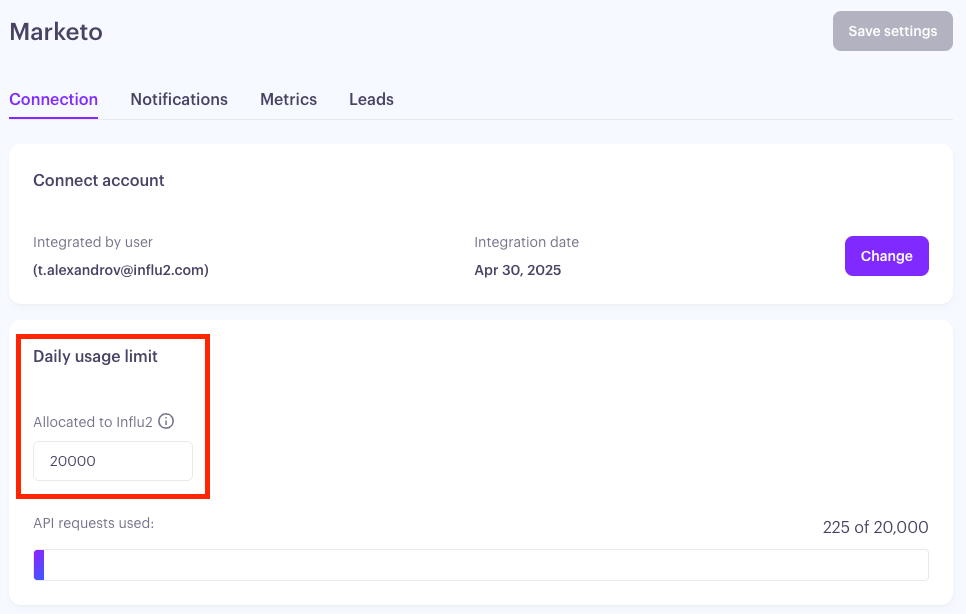
By default, Influ2 allows up to 20,000 API calls per day to your Marketo instance to ensure optimal integration performance. Most accounts never come close to that — but high-volume accounts with large audiences can, and it's worth knowing what happens when they do.
What counts as usage
Each of these operations makes one or more calls to Marketo's API:
Syncing contacts from your static and smart lists
Sending custom activity notifications when targets hit engagement thresholds or trigger an intent signal
Exporting daily metrics to Marketo lead fields
Because a single target can generate both a signal notification and a metric export, accounts with large audiences use proportionally more of the daily allowance.
What happens if you reach the limit
If your account reaches its daily API limit, Influ2 pauses the affected operations until the allowance resets. Data isn't lost — syncs, notifications, and metric exports queue up and process automatically once there's room again. What you'll notice is a delay: data that would normally appear in near real time can take up to 24 hours to catch up.
You can adjust your API request limit at any time in your Marketo integration settings.
Approved IPs
If your organization restricts API calls by IP address, add these Influ2 IPs to your approved list:
35.224.81.3
35.232.17.171