Managing Ad Content in a Program
Last updated: April 29, 2026
Your ad creatives are accessible within the Actions tab of each Program — that's where you can launch new ads, pause the ones that need a break, and archive the ones that have run their course. Here's how to ensure your Programs service the right ads to the right people at each journey stage.
Before you start
You need a Manager or Admin user role to edit content. Go to any Program and open the Actions tab.
How to add content to a journey stage
Go to Programs and select the program you’d like to launch ad content for.
You’ll land on the summary tab by default. Click the Actions tab.
On the Actions tab, find the stage (or step) you want the ad to run and click Add content.
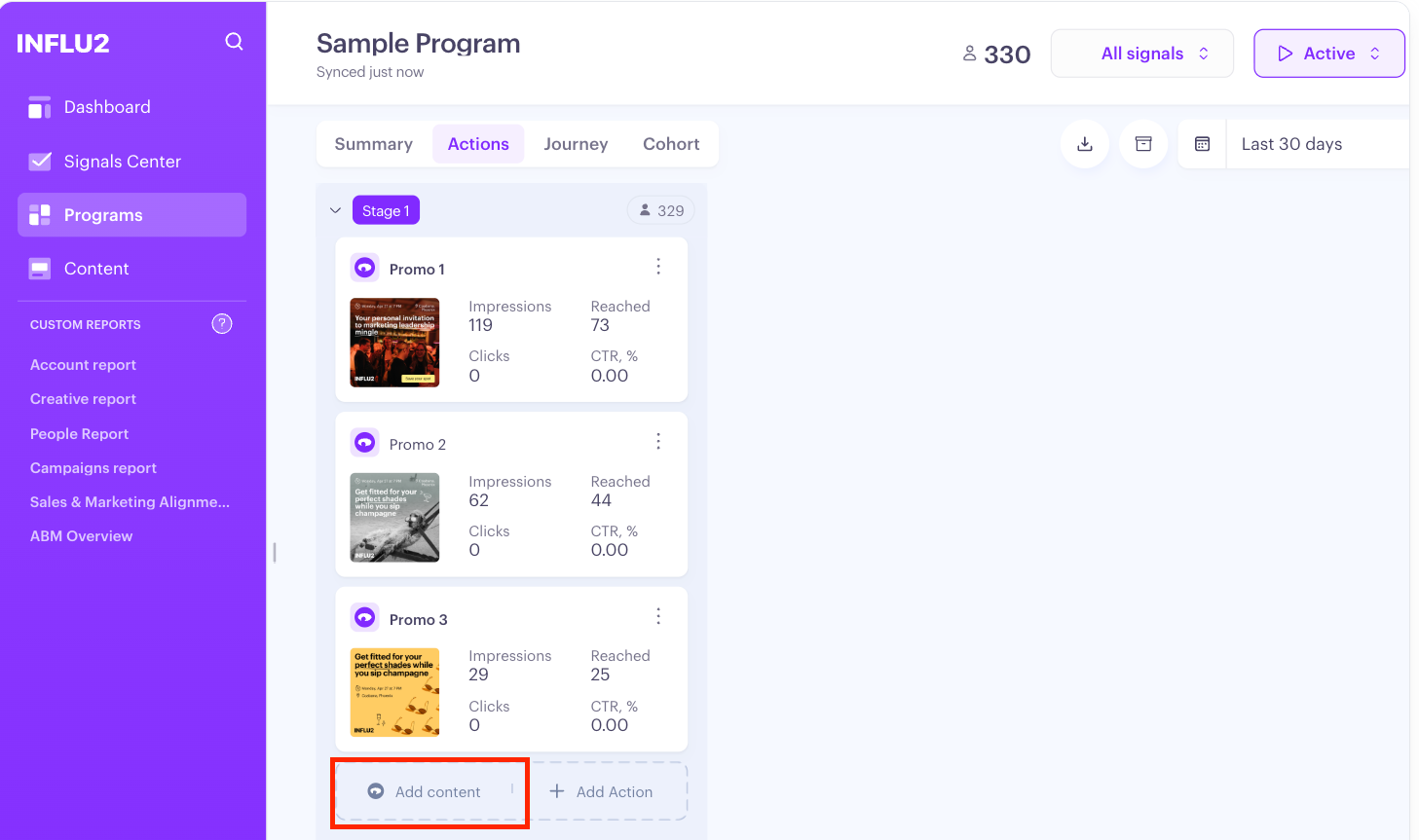
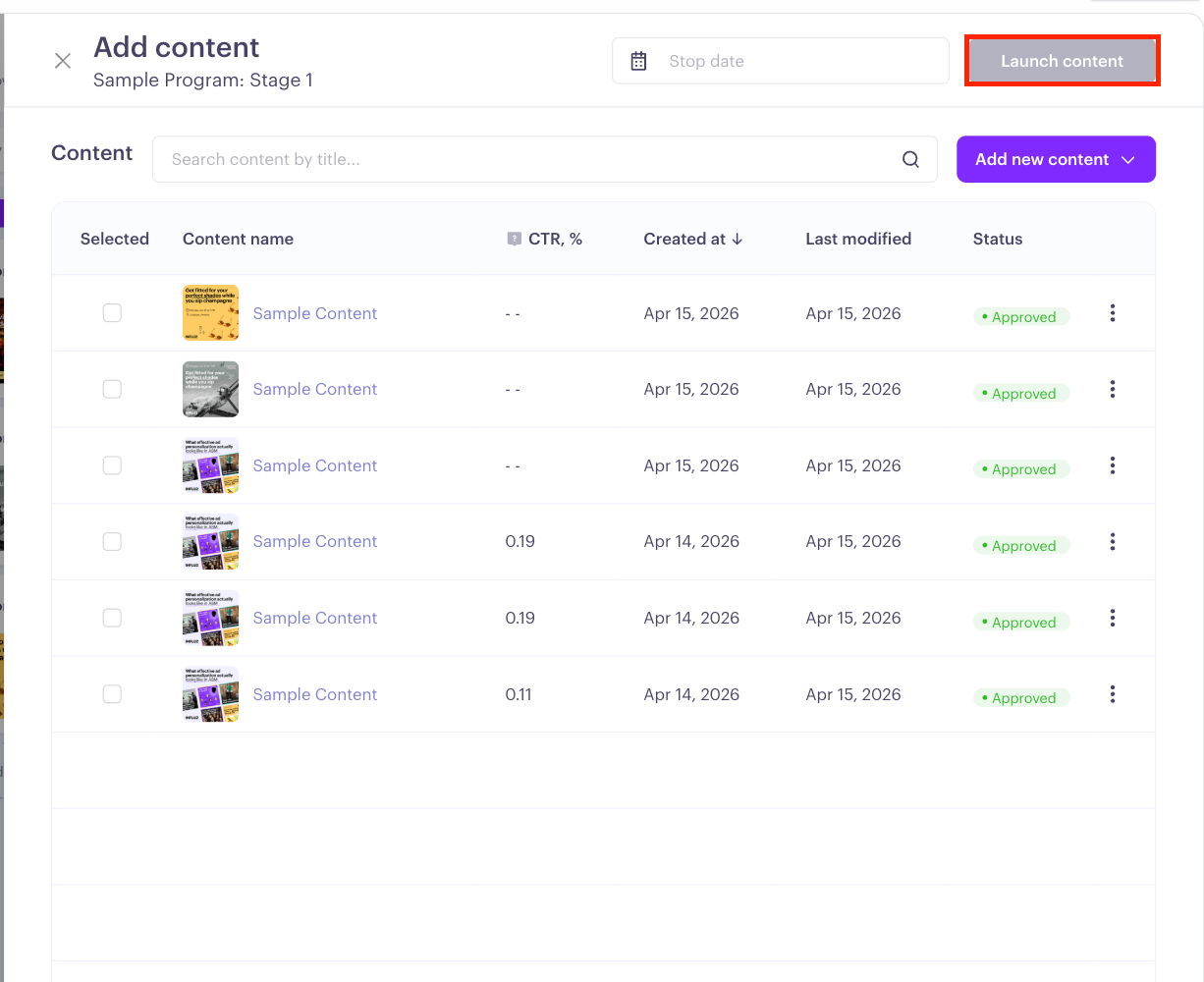
In the configuration panel, pick the creative you want to assign to this stage or step, then click Launch Content.
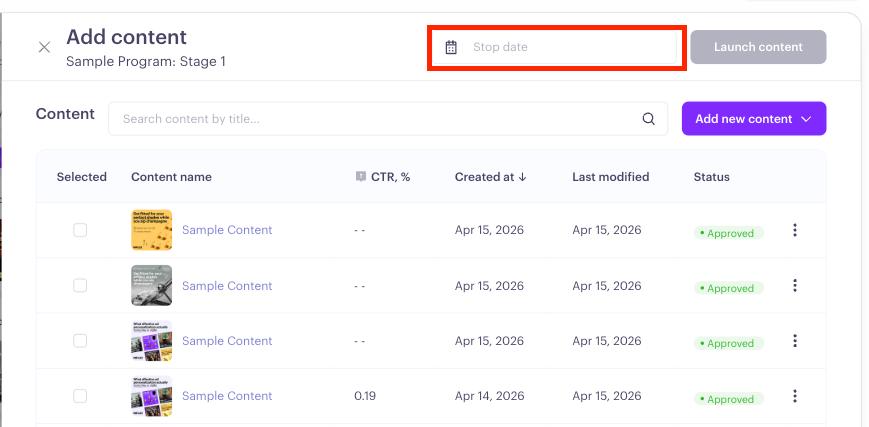
Optional: Add a stop date
To run content until a specific date, select a stop date before launching.
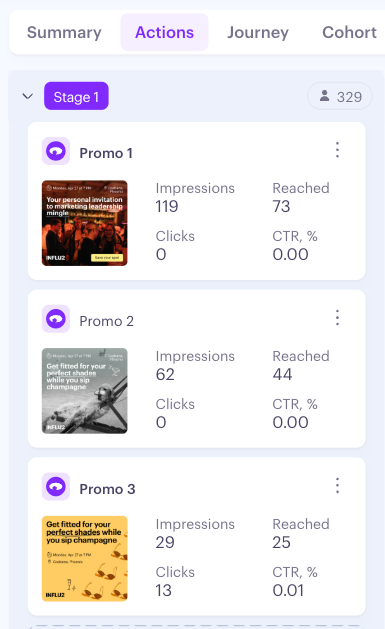
The card appears in the stage column with its creative preview, status, and live metrics (Content status, Impressions, Reached, Clicks, CTR%).
Content tips:
If reached is much lower than your target count, you may need to improve your audience or talk to your Customer Success Manager about allocating more resources to this ad.
Low CTR usually means the message isn't compelling enough to drive action.
Click the creative thumbnail to open content settings and edit the campaign.
Keep in mind: You can add up to 5 ad creatives per stage or step.
Pausing content
Pausing ad content is ideal when you want to:
Temporarily replace existing content (e.g., for a short-term campaign or event promotion).
Quickly switch to new ads while keeping the existing content available for future use.
Steps to Pause and Replace Content:
Assign new content first. Upload and assign the new content in the Program's Actions tab at the relevant stage or step.
Allow the new content to complete the moderation process (typically 1–2 days).
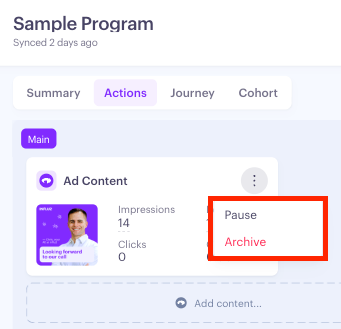
Then, pause the existing content. Go to the specific journey stage in the Actions tab. Click the three-dot menu next to the content you want to pause. Select Pause.
Important Notes:
Once paused, the ad will stop serving immediately.
Always assign and wait for new content to go live before pausing the old content to avoid ad delivery interruptions.
Moderation Time: 1–2 days on average.
Best Practice: Ensure the new content is active before pausing the current content.
Resuming Content
Go to the specific journey stage in the Actions tab.
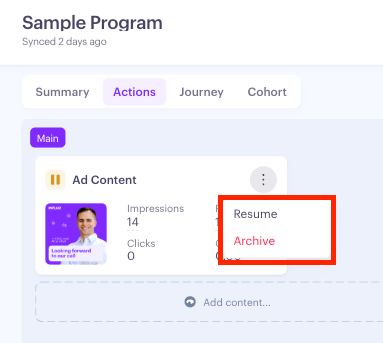
Click the three-dot menu next to the content you want to resume. Select Resume.
If the entire Program is paused, resuming content individually has no effect while the program itself is paused — you'll need to resume the program first
Archiving Content
Archiving is recommended when:
Content has a low CTR or has been running for several months.
You want to avoid creative fatigue and permanently remove the content from the cohort.
Steps to Archive Content:
Go to the specific journey stage in the Actions tab.
Click the three-dot menu next to the content you want to archive. Select Archive. Confirm in the dialog that appears.
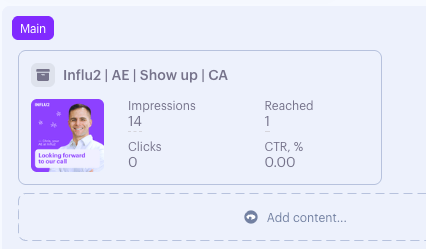
Once archived, the content is removed from the actions tab and cannot be restored. To view archived content, click the Show archived toggle in the top right. The ad content will remain greyed out, but visible for historical performance tracking.

Content Performance
Each ad content on the Actions tab shows the creative preview plus live metrics for the selected date range:
Content status — moderation and delivery state of the creative.
Impressions — count of unique targets the ad served to.
Reached (X of Y) — how many targets in this stage have actually been reached versus total in the stage.
Clicks — count of unique targets who clicked.
CTR% — clicks divided by impressions.
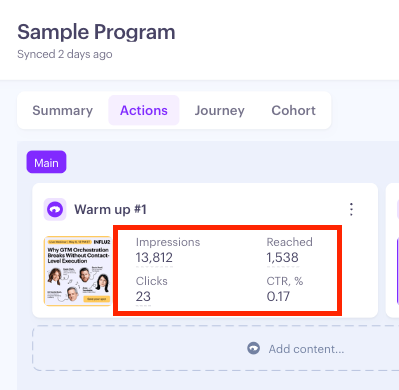
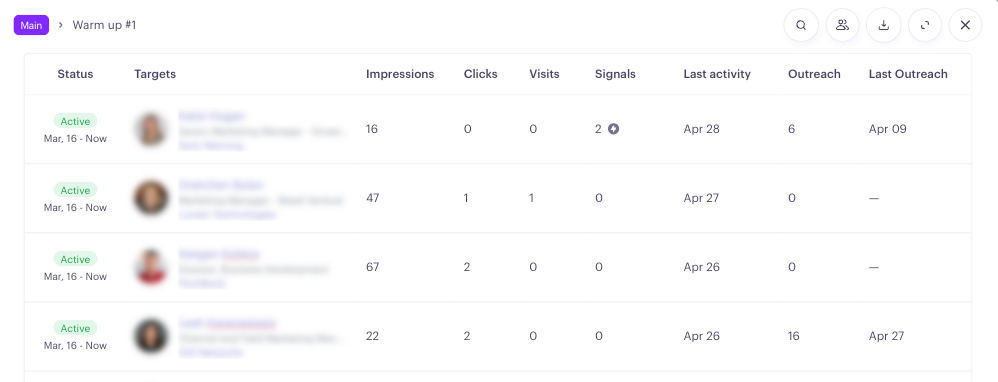
Click any metric on the card to open the Audience slideout filtered to the targets behind that number — useful when you want to see exactly who's clicking, who's been reached, or who hasn't yet.
What's next
To add other activity types alongside ads (Salesforce Campaign, HubSpot List, Salesloft cadences, Outreach sequences, etc.), click Add actions next to the ad content option.
Or, once your ads are live, head to the Summary tab to see how the program is performing across all activities.