How to Launch Signal Collection with Audienscope
Last updated: May 27, 2026
Audienscope captures buyer intent — search, content, social posts, website visits, and job changes — from your target audience. Turning on signal collection means your team starts seeing those high-intent moments in Signals Center and in Programs, so you can act while interest is highest. This guide walks through how to activate Audienscop signal collection.
Before you start
You'll need:
An active Audienscope subscription with available credits
Admin or Manager permissions (these are required to start signal collection)
A Program with at least one cohort/audience added on the Cohort tab
A Journey assigned to the Program, with the stages you want to listen on
Keep in mind: starting signal collection consumes credits immediately for every target currently in the Program, so it's worth confirming your audience is set the way you want before you flip it on.
Steps
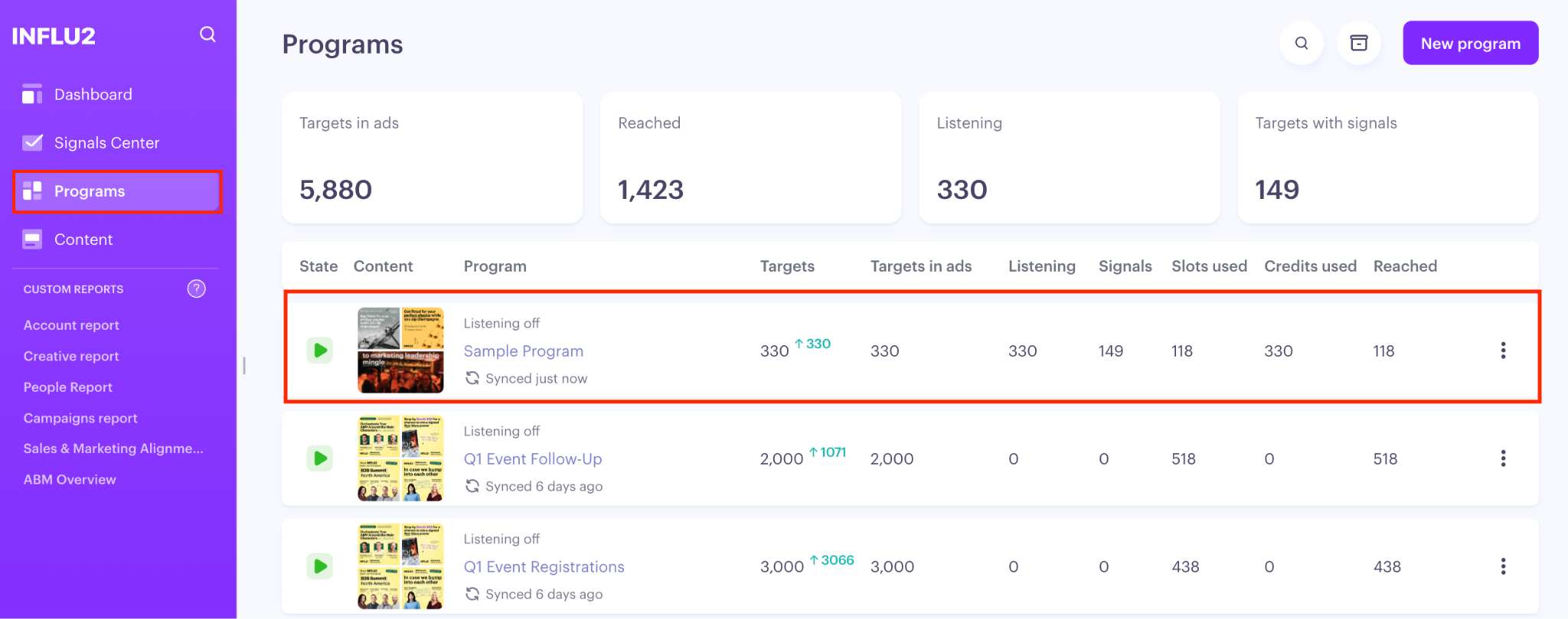
1. Open the Program you want to activate signal collection for
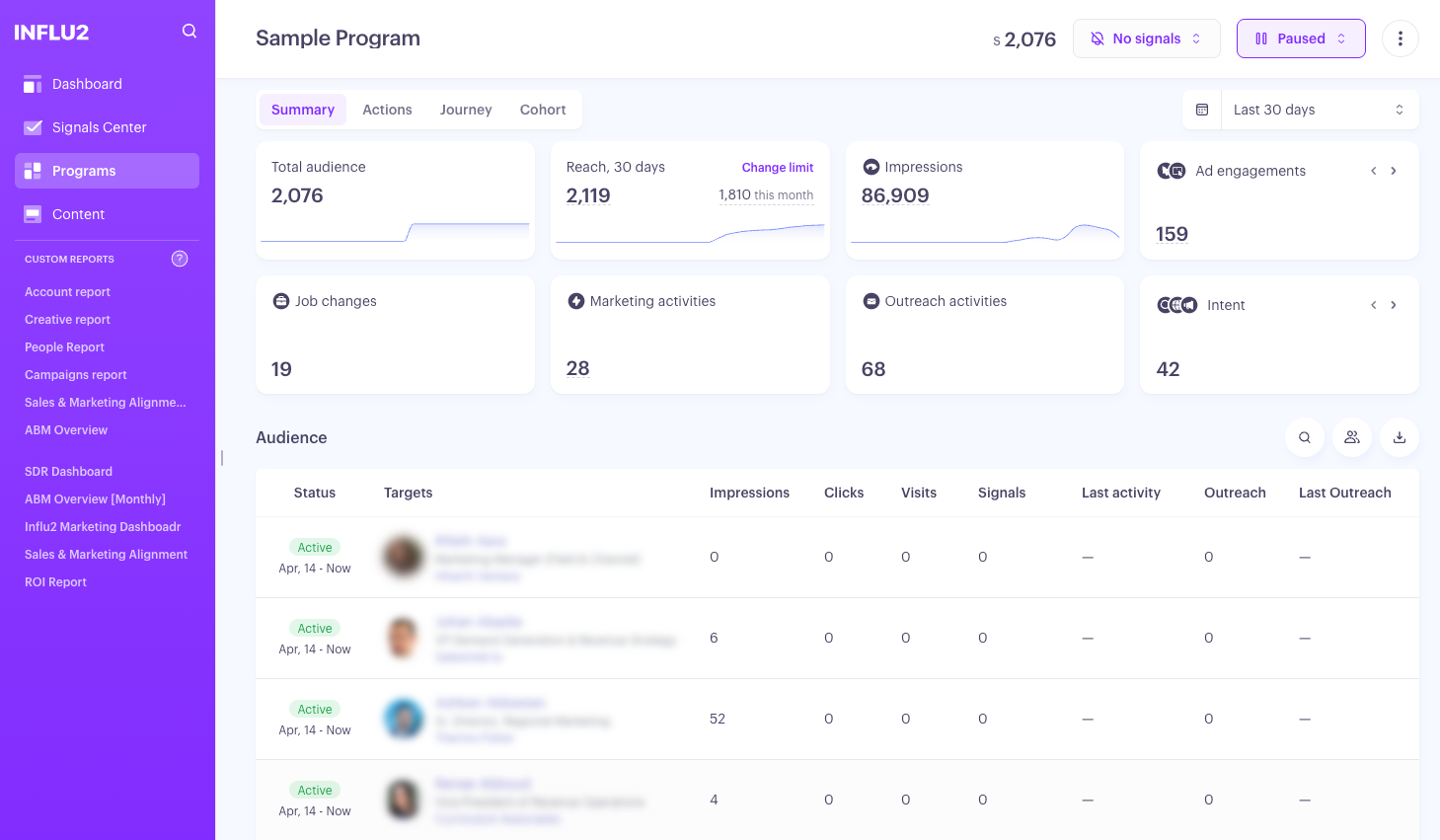
Go to Programs in the left sidebar and click into the Program. You'll land on the Summary tab by default.
2. Set the Program-wide signal type
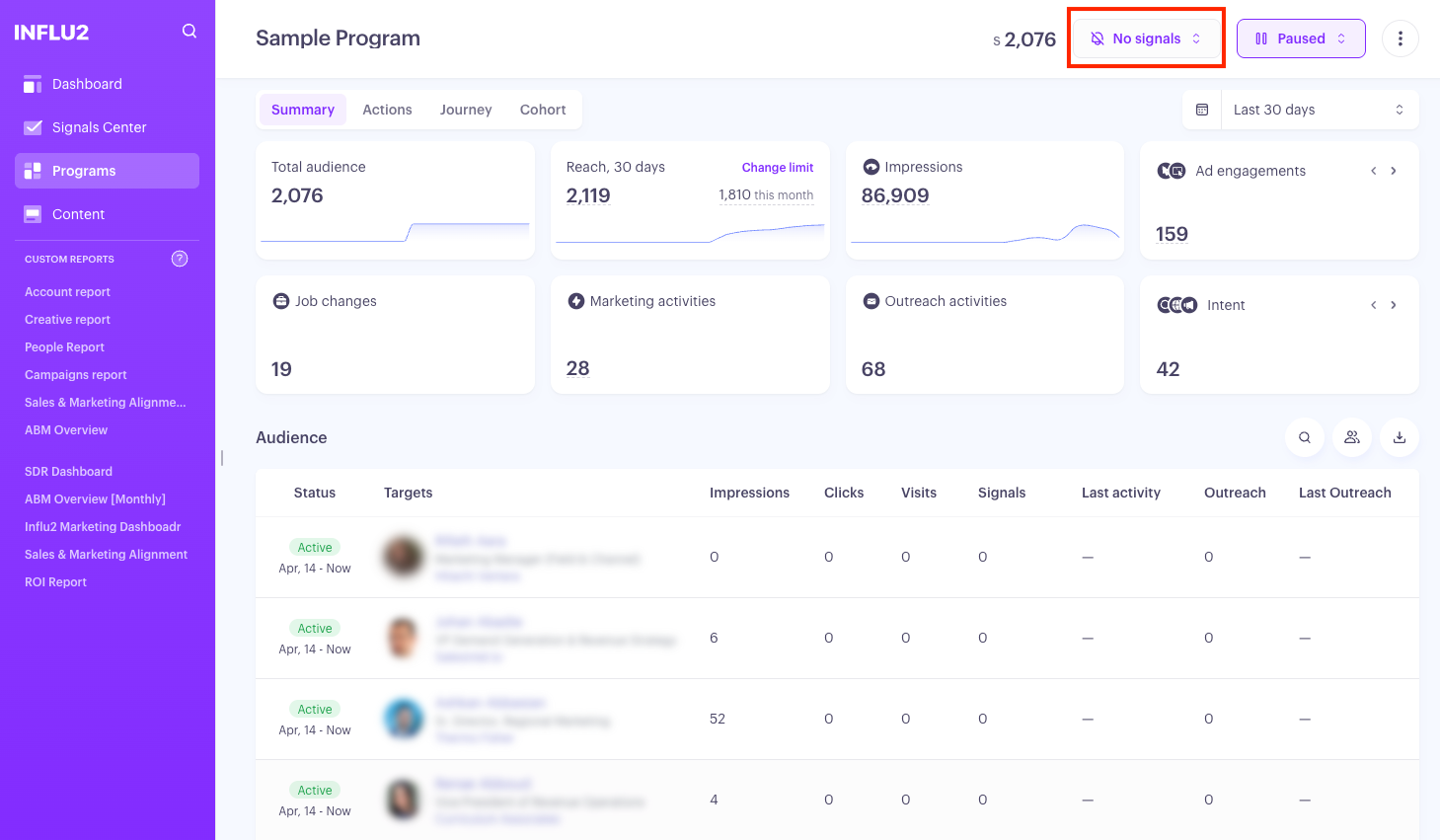
In the Program header, open the Program signals dropdown and choose:
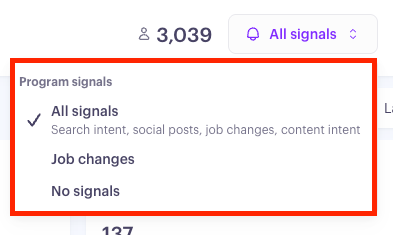
All signals — collect Search Intent, Content Intent, Social Posts, Website Visits and Job Changes for everyone in the Program
Job changes — collect Job Change signals only (New Hire and Title Change; Left Company is excluded by design)
No signals — turn collection off for the whole Program
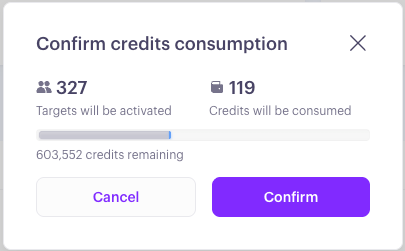
Picking All signals or Job changes opens a confirmation modal showing the maximum credit consumption for this Program. Review the number, then confirm to start collection. If audience sync hasn't finished yet, you'll see an extra warning recommending you wait — you can still proceed if you want to.
3. Fine-tune which stages collect signals
By default, every stage and step in the Journey turns listening On when the Program is set to All signals or Job changes. To listen only where it matters (for example, all signals on Warm up but nothing on Active Outreach):
Open the Journey tab on the Program
Find the stage or step you want to change
Toggle listening Off on that element
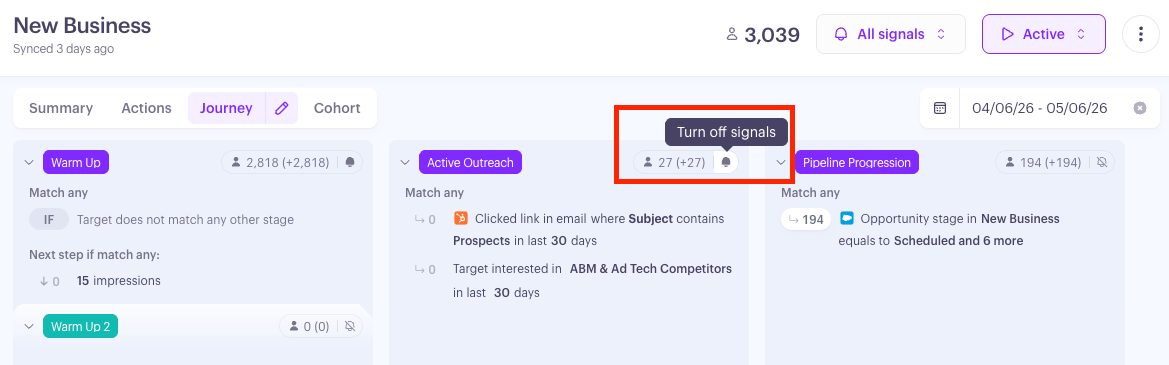
The toggle only affects the stage or step you change — it doesn't cascade to siblings or nested steps. Signal type is inherited from the Program; switching the Program type later (for example, All signals → Job changes) updates every stage that's still On and leaves Off ones alone.
4. Confirm collection is running
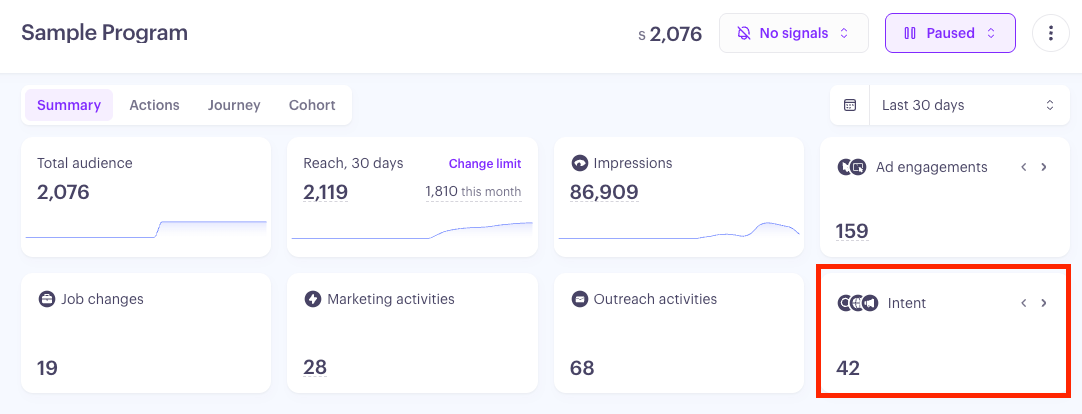
Back on the Summary tab, the scorecard cards (Job changes, Signal carousels for Social Posts / Search Intent / Content Intent) update for the selected date range. Click any scorecard number to open the Audience slideout filtered by that signal type.
What you'll see
Once collection is running, signals start flowing into three places:
The Program's Summary tab — scorecard counts and per-target signal icons in the Audience table
Signals Center — your team's main feed for acting on intent
Each target's profile — a full history of detected signals, with context like topic, page URL, or post text so reps can write outreach that lands
Targets in stages where listening is Off still appear in the Program, but no signals are delivered or counted for them until you toggle listening back on.
Pausing, switching off, and re-activating
A few useful behaviors to know:
Switching the Program to No signals stops delivery everywhere. Your stage-level on/off settings are saved, so when you flip the Program back to All signals or Job changes, your previous configuration is restored — not reset.
Pausing the Program (from the status dropdown) also stops signal collection along with audience sync, ad delivery, and outreach. Resuming brings everything back, except activities that were individually paused before.
Archiving the Program is irreversible and stops collection permanently for that Program.
Keep in mind: when collection resumes, Audienscope picks up from that moment forward — there's no retrospective import for the period collection was off. Signals collected before you paused stay in the database.
What's next
Once signals are flowing, the next move is usually to set up routing or alerts so the right rep sees the right signal at the right time. Take a look at your Follower settings, or the Journey condition types that let intent signals trigger automatic stage transitions.