Using the Influ2 MCP
Last updated: August 20, 2026
The Influ2 MCP connects your favorite AI tool directly to your Influ2 workspace, giving it access to contact-level insights and the ability to take action on your ABM programs.
Once connected, you can use AI to analyze ABM impact on revenue, create new or apply changes to existing programs, optimize advertising strategies, prepare for Sales calls, and more—all through plain-language prompts.
What is an MCP?
MCP stands for Model Context Protocol. It’s a secure connector that lets AI tools like Claude or ChatGPT connect to your Influ2 workspace, access your data, and take action on your behalf (with permission).
MCP doesn’t replace the Influ2 application. Instead, it lets you work with Influ2 directly from your AI conversation, so you can get answers and manage your ABM programs without switching between tools.
What you can do with it
Influ2’s MCP gives AI tools what they cannot get anywhere else: contact-level buyer signals to know who to target, and access to power the ABM programs that reach them. Without that, AI is smart, but stuck. With Influ2’s MCP connected, your AI tool can:
Read and explore your Influ2 data | Take action in Influ2 — only with your explicit permission |
|---|---|
|
|
Example Use cases
Whether you’re in Marketing or Sales, here are four example ways to put Influ2's MCP to work:
1. Launch ABM programs with AI
Turn an ABM idea into a live program using plain-language prompts. Describe who you want to target and how you want to engage them throughout their buying journey—with ads, emails, and sales outreach—and your AI tool can build and launch the program in Influ2, without requiring you to switch tools or configure everything manually.
2. Optimize your advertising strategy
Analyze contact-level ad performance across all your ABM programs in a single conversation. Quickly identify which creatives, messages, and campaigns are performing best, then use those insights to inform what you run next.
3. Connect ABM activity to business impact
Go beyond the questions your dashboards were built to answer. Combine Influ2’s contact-level engagement and intent data with context from across your GTM stack to uncover what’s driving pipeline and revenue—and answer business questions in the way that works for you.
4. Prepare Sales for every call
Give Sales the context they need to make every conversation more relevant. Use contact-level buyer signals to understand who’s showing interest, what they’re engaging with, and which prospects to prioritize next—so reps can walk into calls prepared and know what matters to each buyer.
Check out the Influ2 MCP Promptbook: A downloadable guide for each use case above, with actual prompts you can try today.
Applying changes safely
A lot of what the MCP does is read-only — pulling data from your workspace and surfacing it in your AI conversation. The actions that actually make changes (creating a program, editing a program, uploading content) all follow a preview-before-commit pattern:
Your AI tool builds a plan based on your request.
You see a preview of what will change. For program edits, that includes the audience affected and the estimated reach and credit usage.
You confirm before anything is created or modified.
Nothing is written to your workspace until you explicitly approve it.
Changes that can’t be executed with MCP
Some operations are intentionally UI-only. The MCP will tell you when something falls into this category, and it'll point you to the Influ2 UI to complete it. Current UI-only operations include:
Replacing or restructuring a program’s existing journey — for example, replacing the criteria that determines how buyers move through the journey
Removing an audience, stage, or action from an existing program
Archiving a program
Uploading ad creatives
Keep in mind: If you ask AI to make a change that falls outside these boundaries, it won't guess or partially apply it. It'll explain what's not supported and tell you where to go instead.
Connecting the Influ2 MCP
Connecting the Influ2 MCP works like signing in to any app with your Influ2 account—there’s no access key to request or manage. Sign in once, choose which workspaces to share, and your AI tool is ready to use Influ2.
Before you start
You’ll need an active Influ2 account with access to the workspace(s) you want to connect. If you’re setting this up for your team, make sure each person who will use the MCP has their own Influ2 account. Access is tied to each person’s individual login and permissions, not a shared key.
Steps
The steps and screenshots below use Claude as an example. Setup works the same way across MCP-compatible tools, but the exact button names and screens may look slightly different depending on which AI tool you’re using.
In your AI tool (like Claude), add Influ2 as a connector and select Connect. Your assistant will open Influ2’s authorization page.
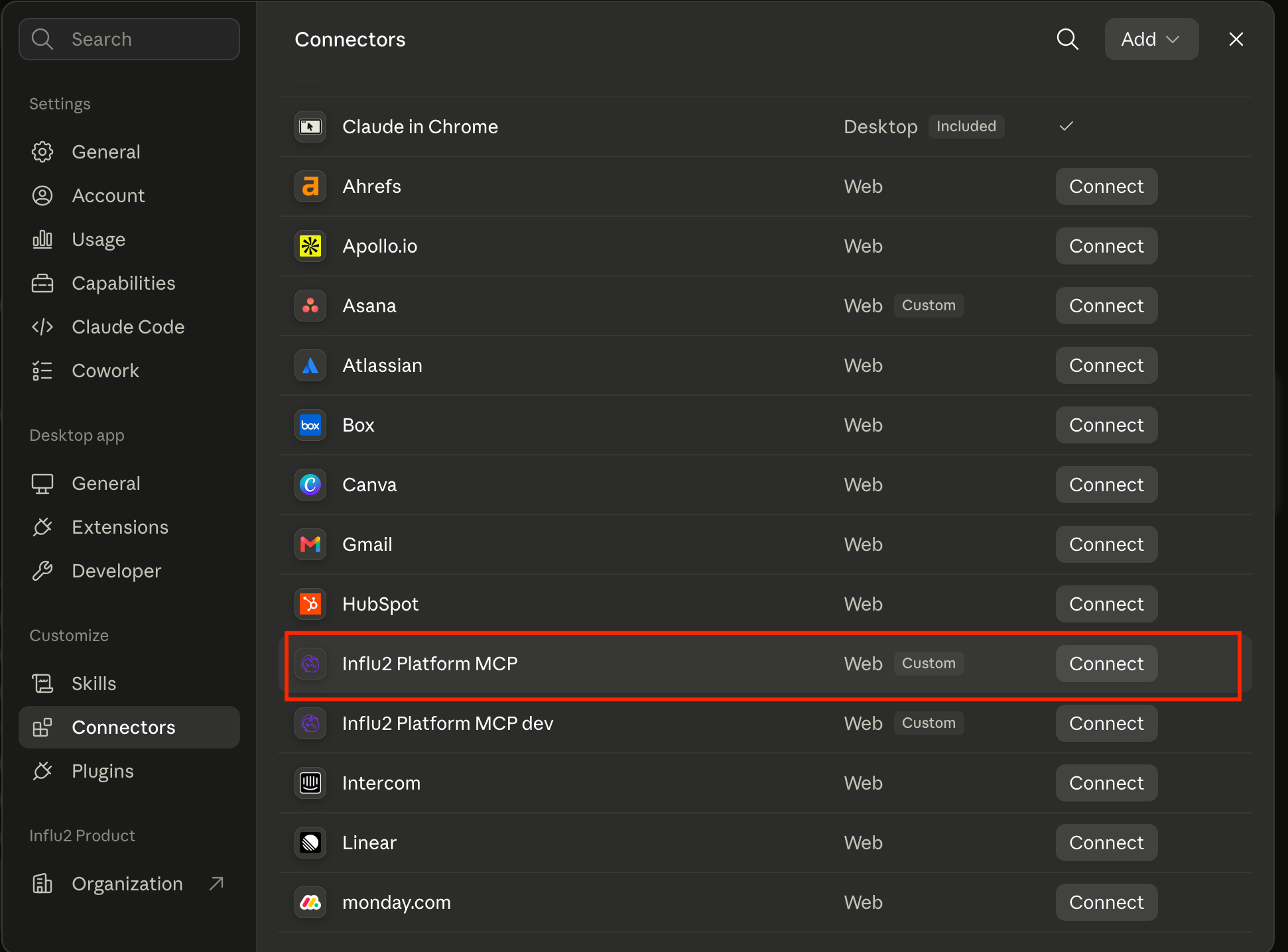
Log in to Influ2. If you’re already signed in, your existing session will be reused and you’ll skip to the next step.
Review the consent screen. You’ll see which tool is requesting access, the Influ2 user account being connected, and the workspaces you’re about to share.
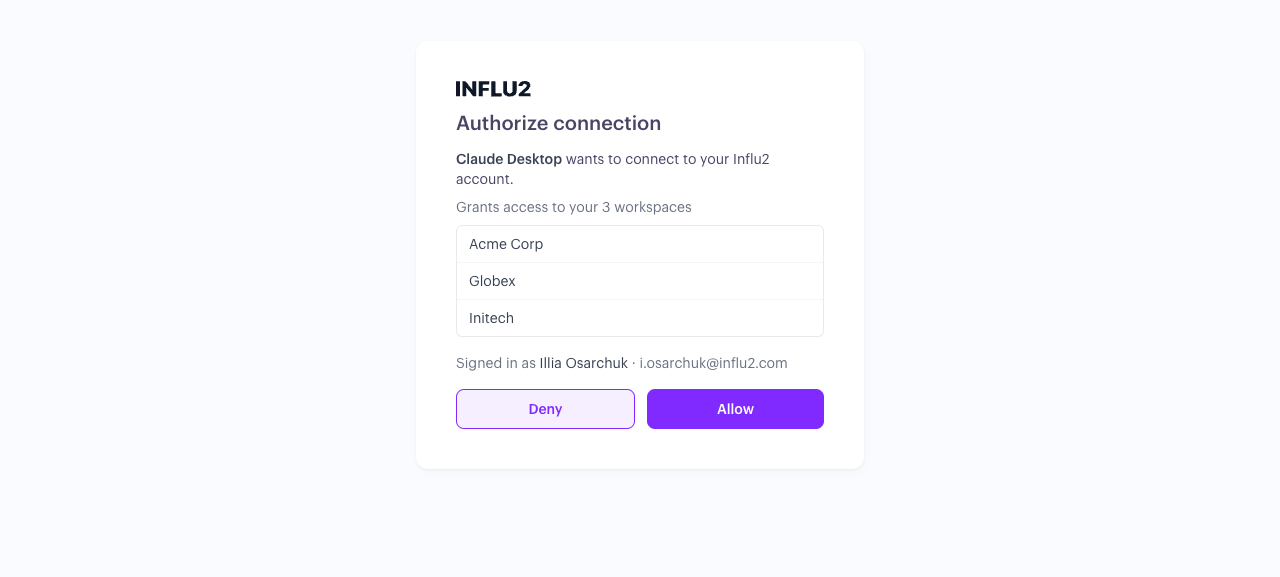
Select Allow to finish connecting. You’ll see a confirmation screen, which you can close to return to AI tool.

Don’t see Influ2 in your connector list?
If Influ2 isn’t showing up as an available connector, your Claude/AI tool admin may need to add it for your organization first. Once it’s added, you should see it in your own connector list and can connect using the steps above.
Here’s what a Claude admin needs to do:
In Claude, go to Connectors and select Add → Custom.
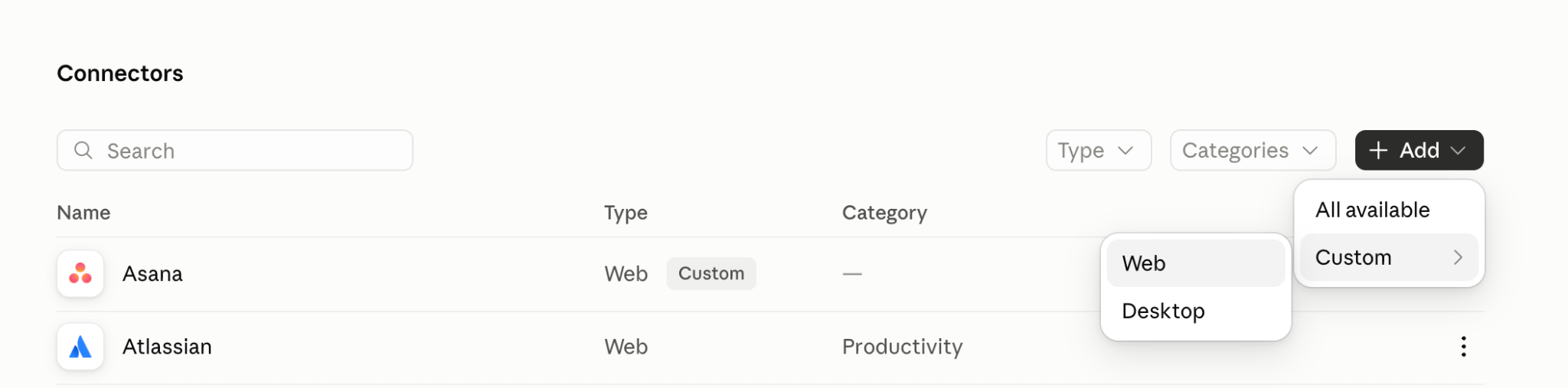
In the modal, enter Influ2 as the name and paste this MCP server URL: https://mcp.influ2.com/mcp
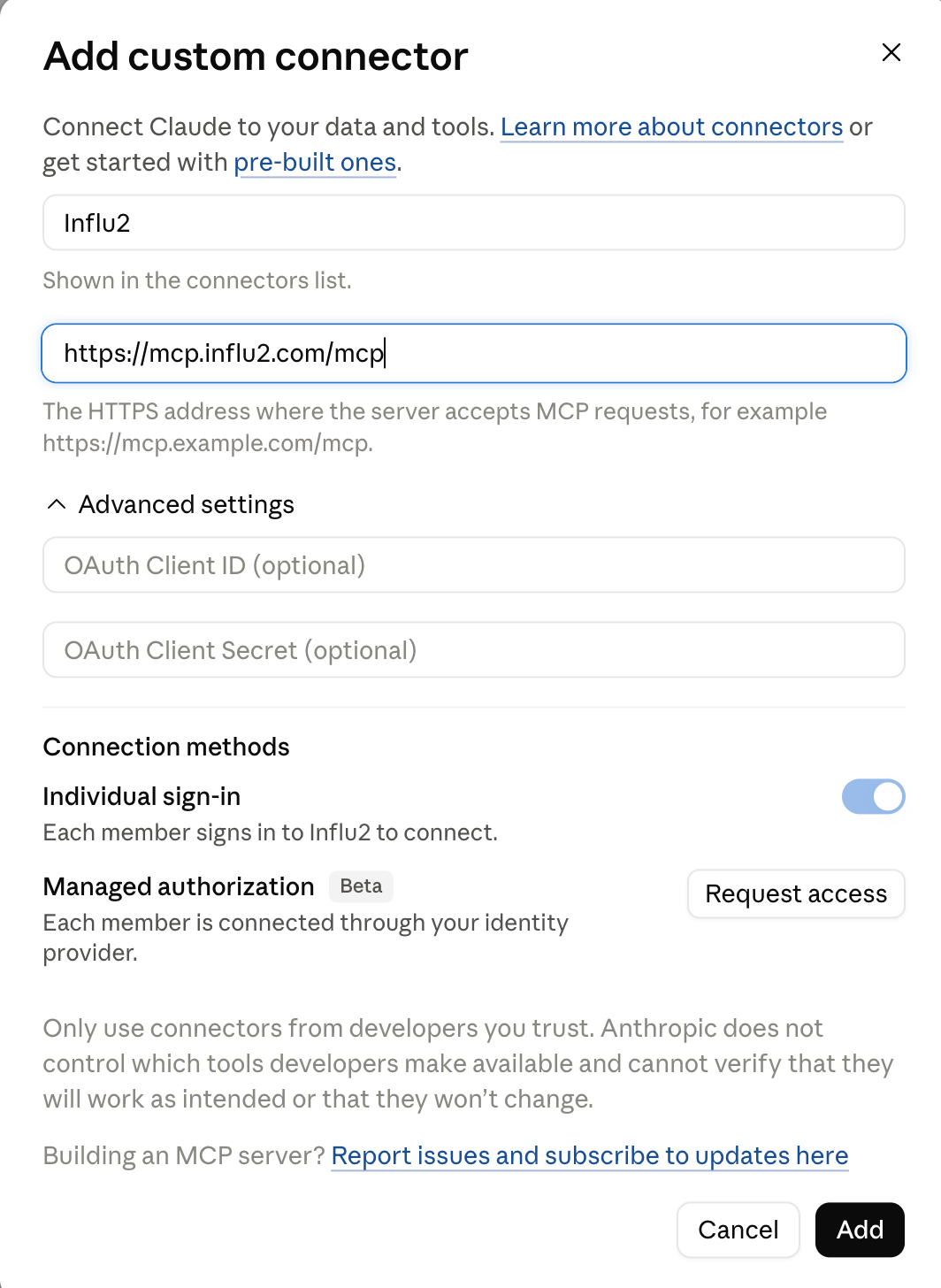
Select Connect (or Authorize).
Keep in mind: Some organizations have security policies that limit who can add or configure MCP connectors. If you or your admin run into any issues setting this up, reach out to your Customer Success Manager and they’ll help you get it sorted.
What happens after you connect?
Your AI tool stays connected without requiring you to log in again. Each request to Influ2 runs using your own account permissions, so it can only access the workspaces and data available to you.
Keep in mind
If you lose access to a workspace or your Influ2 account is deactivated, the AI tool will also lose access to that workspace.
Influ2 MCP access keys have been retired. If you previously connected using an access key, that connection no longer works. Reconnect using the steps above.
Any MCP client can connect this way. There’s no separate approval required from Influ2. Whether you use Claude or another MCP-compatible AI tool, the connection follows the same login-and-consent flow.
Questions about setup? Reach out to your Customer Success Manager.