How to Integrate Influ2 with Microsoft Dynamics
Last updated: July 10, 2026
This guide walks you through connecting Influ2 to your Microsoft Dynamics instance. Once connected, Influ2 can pull audience data and sync audience changes, giving you access to your CRM data for cohort creation and campaign targeting.
Before you start, you'll need:
Admin access to your Microsoft Dynamics instance
The instance URL for your Microsoft Dynamics account
Steps
1. Access Integration Settings
Go to Settings → Integrations → Microsoft
You'll see five tabs here. This guide covers Connection and Lists.
2. Connect Your Microsoft Dynamics Instance
Go to the Connection tab
Enter your Microsoft Dynamics Instance URL
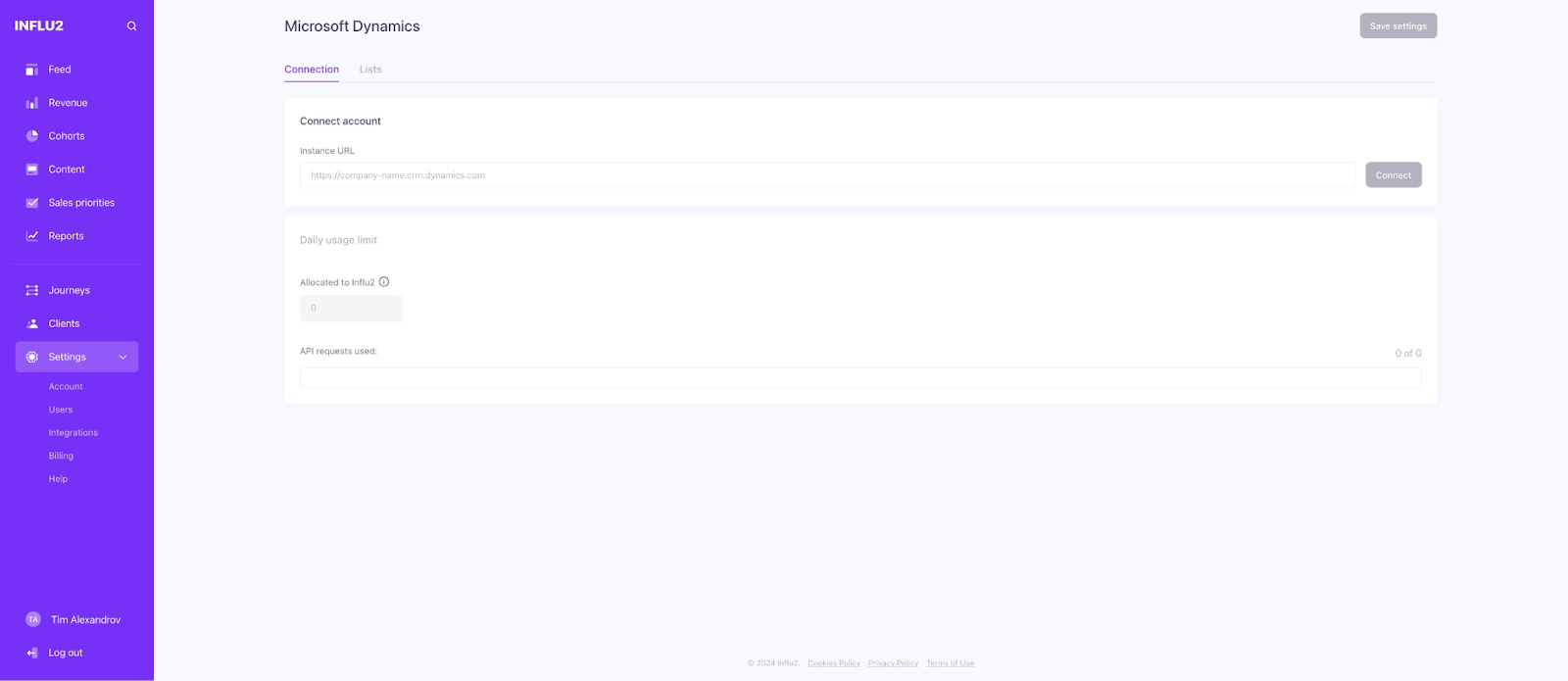
Click Connect
Click Save to apply the settings
Done! Microsoft Dynamics is now connected, and you can monitor daily usage of requests sent to your instance.
3. Activate Audience Sync from Microsoft Dynamics
Go to the Lists tab
Toggle Gather lists from Microsoft Dynamics to activate

Click Save
You can now create cohorts and work with Microsoft Dynamics audiences.
Approved IPs
If your organization restricts API calls by IP address, add these Influ2 IPs to your approved list:
35.224.81.3
35.232.17.171
What you'll see
Once connected, you can:
Pull contacts, leads, accounts, and opportunities into Influ2 cohorts
See real-time sync of audience changes between systems
Monitor daily sync activity in the Connection tab