How to integrate Influ2 with Salesloft
Last updated: August 25, 2026
Connecting Influ2 to Salesloft gives your sales team visibility into ad engagement right where they work. You can build cohorts based on Salesloft cadences and send real-time notifications when prospects engage with campaigns.
Before you start, you'll need:
Admin access to both your Influ2 and Salesloft accounts
Integration user in Salesloft must have Admin role for full data access
Steps to connect
Log in to Influ2 and go to Settings > Integrations.
Select Salesloft and click Connect.
Authorize Influ2 to access your Salesloft data.
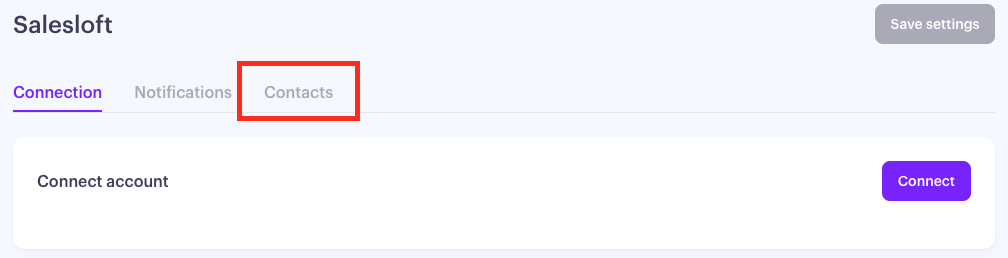
Once connected, you'll see three tabs: Connection, Notifications, and Contacts.
Connection — shows your daily API usage. Salesloft limits requests to 250,000/day.
Notifications — set up engagement notifications to pass from Influ2 to Salesloft.
Contacts — configure auto-create and owner assignment for Programs CRM actions.
Set up notifications
Notifications send Salesloft alerts when prospects engage with Influ2 campaigns. You can choose which activities trigger notifications and set thresholds for each.
Go to Settings > Integrations > Salesloft > Notifications.
Toggle Send notifications to ON.

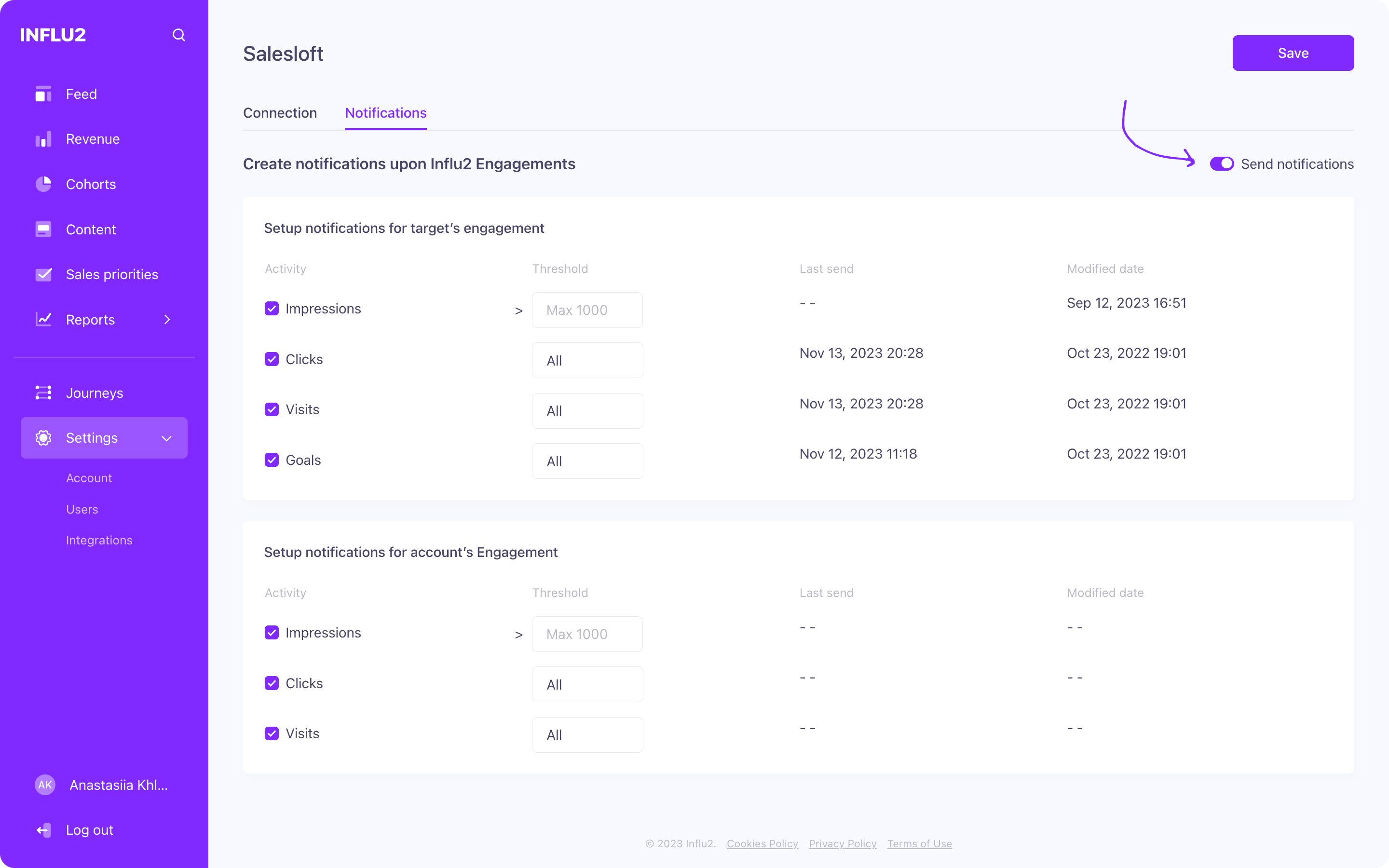
Select which prospect activities should trigger notifications:
- Impressions — set a threshold for the number of ad views (e.g., "every 10 impressions")
- Clicks — every time a prospect clicks your ad (no threshold — notified every time)
- Visits — every time a prospect lands on your page (no threshold)
- Goals — specific actions like form submissions (no threshold)
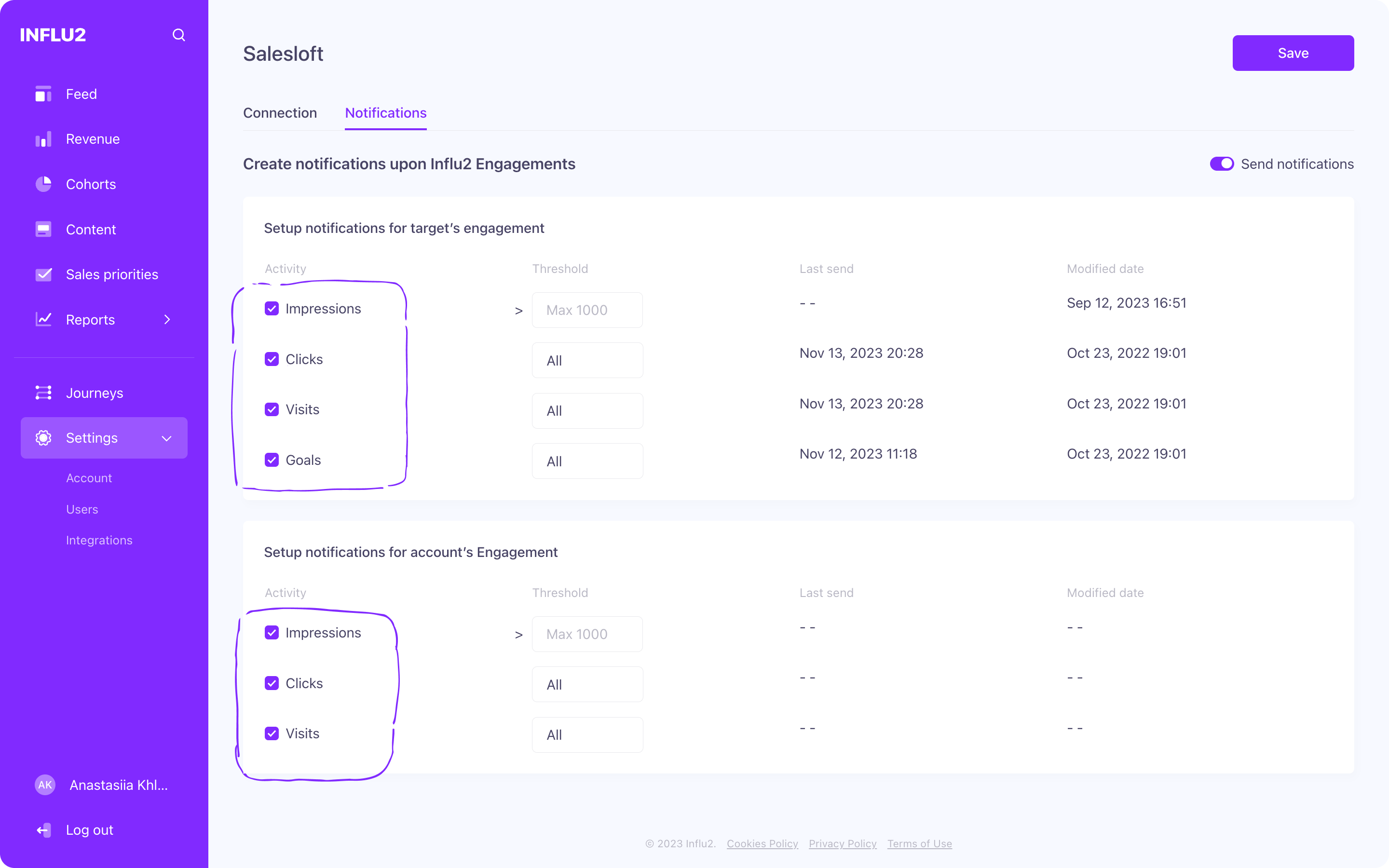
In the Threshold column, set values for Impressions. (For Clicks, Visits, and Goals, the threshold is automatically "All".)
Check the Last sent and Last modified columns to see when each activity last triggered a notification.
Repeat for Account-level notifications. (Keep in mind: Accounts don't have the Goals option.)
Click Save.

View notifications in Salesloft
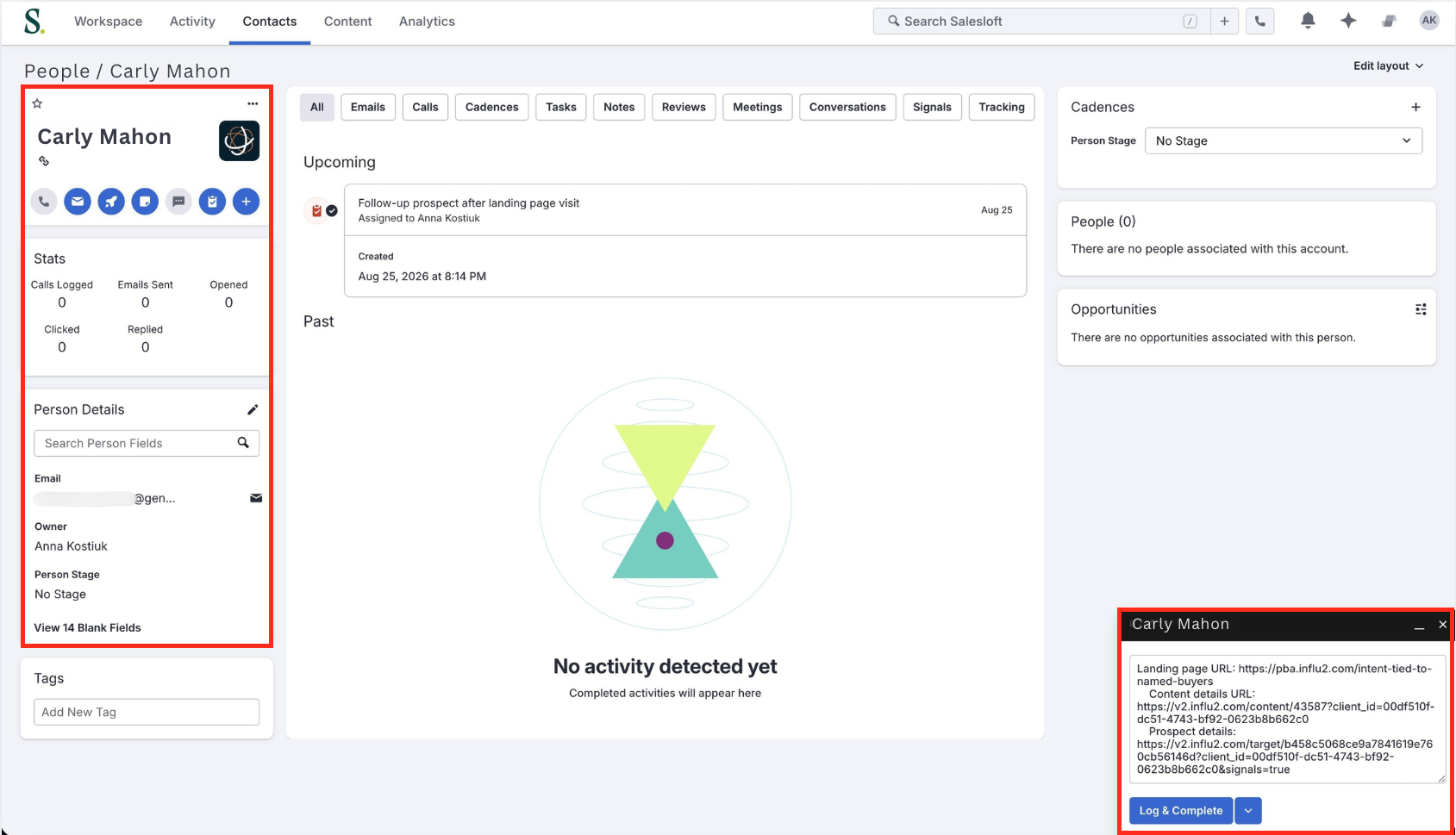
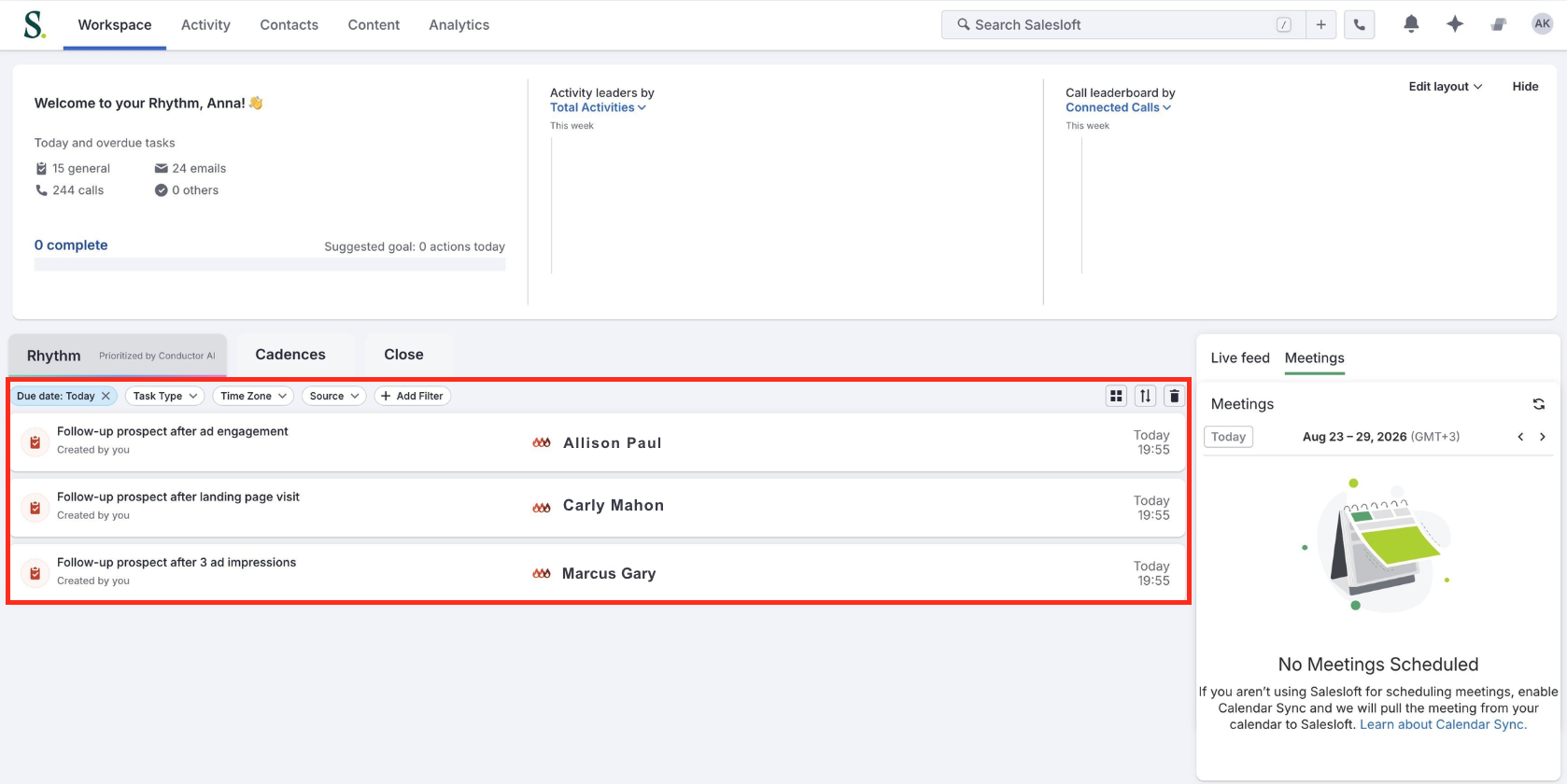
When a threshold is met, Influ2 automatically sends a notification to the contact's or account's profile in Salesloft. Your sales team sees these alerts and can use the engagement data to personalize outreach.
Example notifications
What Influ2 can access from Salesloft
Influ2 pulls specific data to enable targeting and audience matching:
Cadences — All non-archived cadences (used for audience segmentation in cohort designer)
Cadence ID, Cadence Name
Prospects — Those actively in selected cadences (matched and targeted for campaigns)
Person ID, First Name, Last Name, Email, Title, Account ID
Accounts — Associated with synced prospects (for account-level targeting)
Account ID, Name
Users — Active Salesloft users (for sales alignment)
User ID, Name, Email
Actions — Actions in selected cadences with "In progress" status (for journey tracking)
Action ID, User ID, Person ID, Step ID
Using Salesloft with Programs
Programs let you take automated actions in Salesloft — like enrolling a Prospect in a Cadence — when a target enters a specific journey stage. The settings below control how Influ2 handles those actions when the required Salesloft record doesn't exist yet.
Auto-create Prospect
When a target enters a journey stage with a Salesloft action and no matching Salesloft Prospect exists, Influ2 can create one automatically.
Go to Settings → Integrations → Salesloft → Contacts.
Toggle Auto-create to ON.
ON — Influ2 creates a Salesloft Prospect before processing the journey action. Processing continues without interruption.
OFF — If no Prospect record exists, Influ2 stops processing that action for the target. No record is created.
Auto-create is recommended for most Programs setups. Leaving it OFF makes sense if you need strict control over which contacts get added to Salesloft.

Approved IPs
If your organization restricts API calls by IP address, add these Influ2 IPs to your approved list:
35.224.81.3
35.232.17.171