What you see in your list of Influ2 programs (Programs tab)
Last updated: July 17, 2026
The Programs tab is where you'll see the full list of your Influ2 programs and where you can check the health of each at a glance. This article walks through everything on the page: the scorecards at the top, every column in the table, and the actions available on each program.
What you see
The scorecards
The four cards at the top roll up activity across all your programs. They count unique targets and deduplicate across programs — so a target enrolled in three programs is counted once, not three times. That's also why these totals won't match the sum of the columns in the table below; the table counts per program, the scorecards count per account.
Active and paused programs are included in these totals; archived programs are excluded (it can take up to 24 hours for a program to drop out after archiving).
Targets in ads -The number of unique targets actively seeing your ads right now, across all programs. If it drops unexpectedly, check whether a program got paused or an audience shrank.
Targets reached - The number of unique targets who've been reached by ads, out of your current active audience. Use this alongside Targets in ads to see how much of your addressable audience is actually being reached — a wide gap between the two is worth investigating.
Targets in listening - The number of unique targets currently enrolled in Audienscope intent signal listening across all programs. If this number is lower than expected, check each program's listening configuration — a program can have listening turned off entirely.
Targets with signals - The number of unique targets (of those enrolled in active listening) with at least one intent signal. This counts Search Intent, Content Intent, and LinkedIn Posts only — job changes and website visits aren't currently included here.
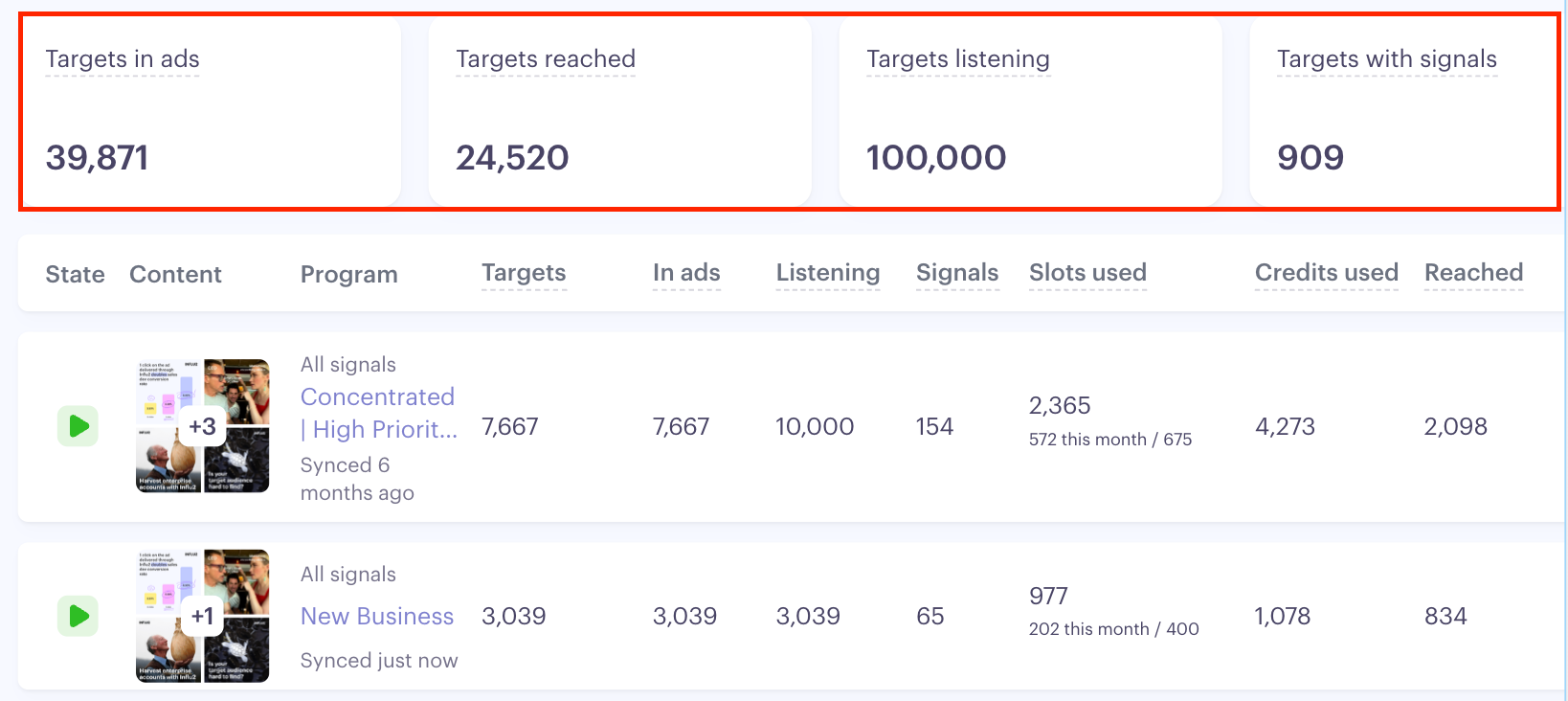
Keep in mind: the Signals column in the table below and the Targets with signals scorecard measure different things. The scorecard counts targets and excludes job changes; the column below counts signal events and includes them. Don't expect these two numbers to match.
The programs table
Each row in the table is one program, with the metrics below broken out per program (not deduplicated across programs — a target in two programs adds to both rows).
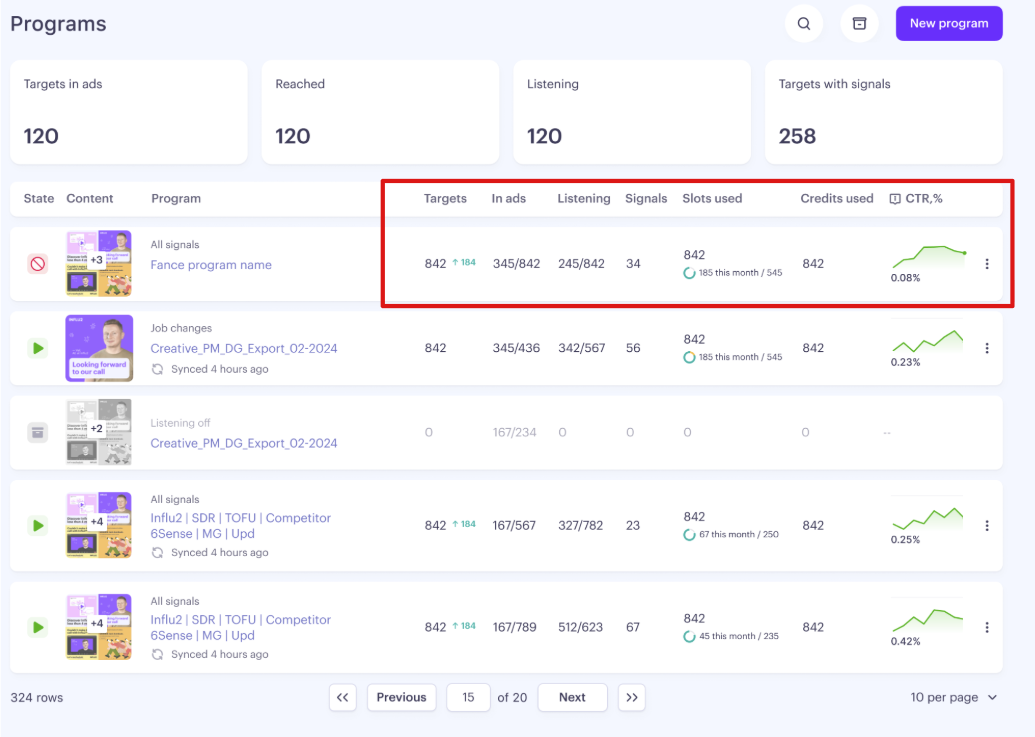
Targets — unique targets currently enrolled in the program. When the count has changed in the last 7 days, an arrow (▲/▼) shows the direction next to the number, so you can spot fast-moving programs without opening each one.
In ads — unique targets currently being served ads in this program. Compare this to Targets to see how much of the program's audience is activated for advertising.
Listening — unique targets currently enrolled in intent signal listening for this program.
Signals — the total count of signal events detected from listening targets since the program was launched. This includes Search Intent, Content Intent, LinkedIn Posts, Title Changes, and Company Left (when someone moves to a new employer). Website visits aren't currently included but will be added soon.
Slots used — The all-time total number of slots consumed by this program since it was launched. This number only grows. It doesn't drop when a target is removed or reset at the end of a month.
Slots used this month — The number of slots used in the current subscription month. This is the number that resets to 0 at the start of each new subscription month.
Slot limit — The limit to the number of slots that can be used during the subscription month. This can be configured from the program screen by clicking the pencil icon.
Credits used — The all-time total number of Audienscope credits used for listening since the launch of the program.
CTR % — CTR is calculated as clicks ÷ impressions, averaged over the last 7 days.
Programs with at least 200 impressions in that window show the CTR value with a 7-day trend graphic. Programs below that show "—" with a tooltip explaining there isn't enough traffic yet.
The column is sortable in both directions, with "—" programs always sorting to the bottom.
Non-metric columns
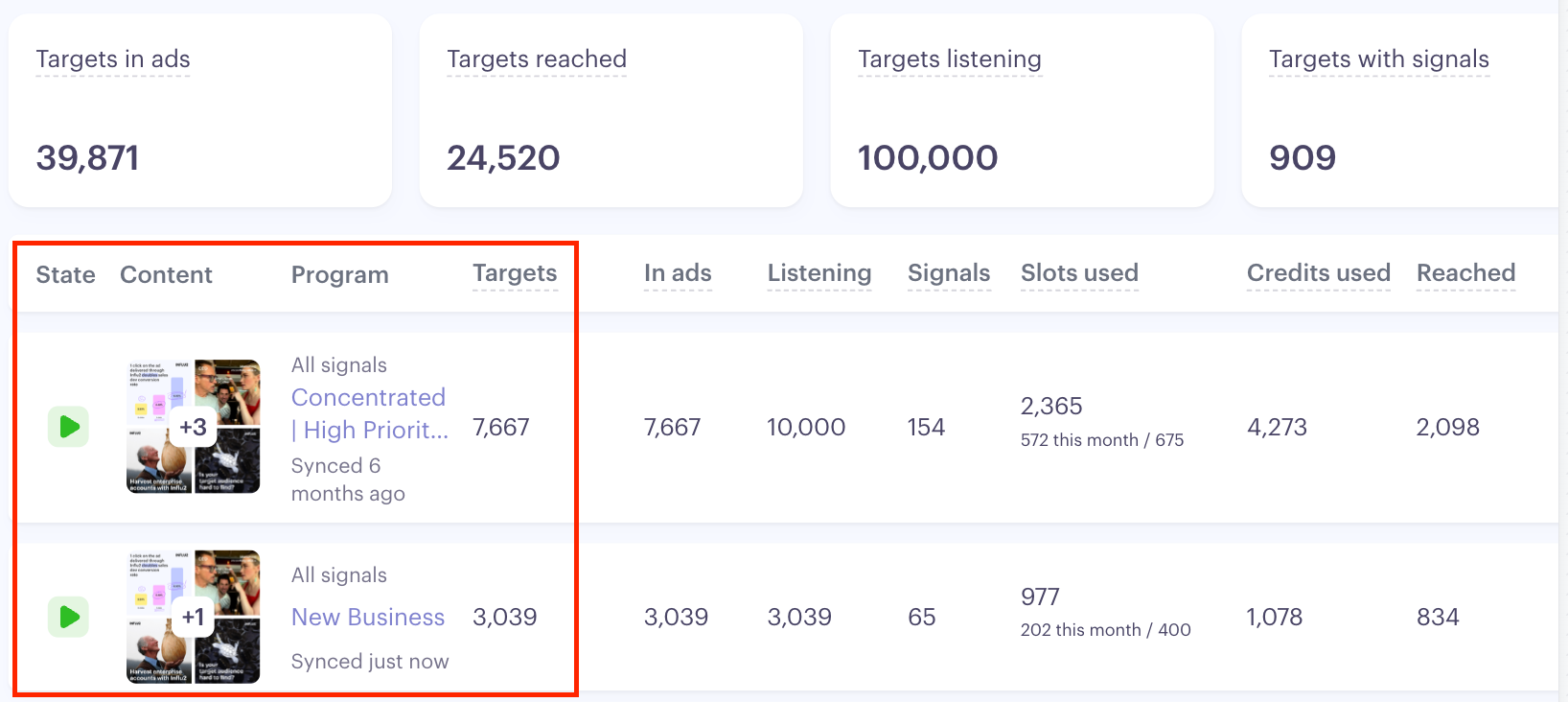
State — shows whether a program is active (running), paused, or archived.
Listening label — appears under the program name and shows the listening configuration: All signals, Job changes, or Listening off. This is hidden for archived programs.
Content — up to four creative thumbnails per program; a "+X" badge tells you there are more creatives than shown.
Synced X ago — how long ago the program's data was last refreshed, so you know how current the numbers are.
Actions
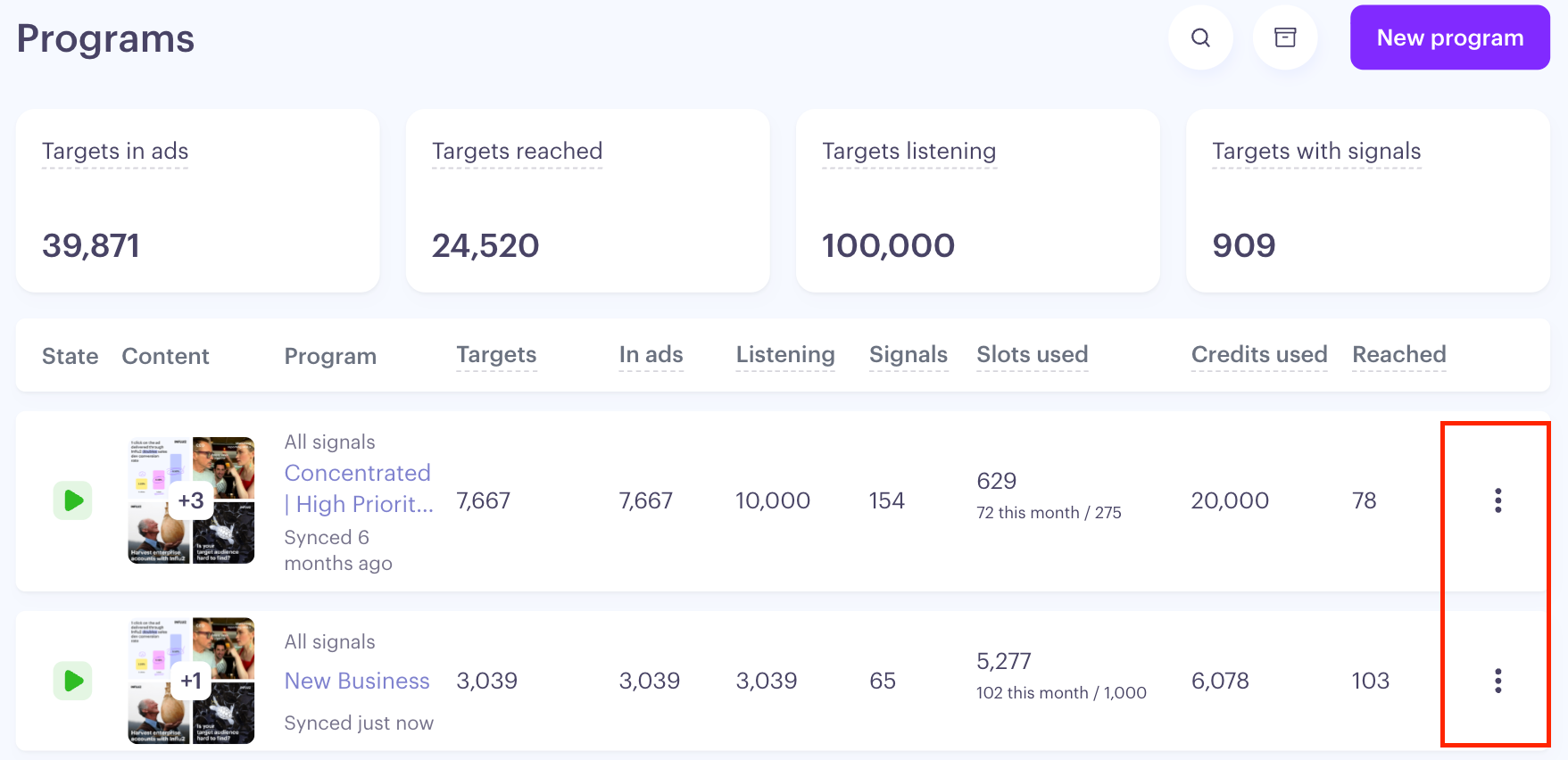
Every non-archived program has a row menu (⋮) with:
Pause — stops ad delivery, intent listening, and configured actions for that program. Resume starts it back up.
Archive — removes the program from the default list and stops its activity. If another program uses it as an exclusion, you'll see a warning before archiving goes through.
These actions are available to users with edit permissions (Admin, Manager). Archived programs don't have a row menu.
Creating a new program
Click New program. A unique name is the only thing required — you can add audience and content later. New programs start paused, so nothing runs until you activate it.
Working with the list
Default sort: newest programs first, with archived programs sinking to the bottom.
Sortable columns: Program (name), Targets, and In ads. Other columns aren't sortable.
Search: matches program names. Type at least 3 characters and press Enter.
Archived programs are hidden by default — use the toggle to reveal them.
Pagination: 10 programs per page by default; you can adjust the page size.
Keep in mind: resyncing a program and changing its limit both happen on that program's individual page, not from this list.